

 |
 |
|
|
| |
| You are here: Home » Import CAD Formats » NGRAIN's 3KO Solutions |
|



Support: 905-672-9328 Copyright © 2024 Okino Toronto, Ontario, Canada.  |
 |
|
 Exporting XGL and ZGL Files Exporting XGL and ZGL Files |
This export converter writes out ASCII XGL formatted files as well as their ZGL compressed equivalents. Triangular mesh data (with vertex normals and vertex uv texture coordinates), material properties, embedded texture images and object hierarchy are exported from the XML-style XGL file.
The XGL file format is designed to represent 3D information for the purpose of visualization. It attempts to capture all of the 3D information. The primary creators of XGL files, other than Okino software, are the CAD packages Solid Edge By Siemens and Inventor by Autodesk.
| Viewing XGL Files |
Okino's NuGraf is ideal for creating, importing, editing, and photo-realistic rendering of XGL objects. Both, NuGraf and PolyTrans, are fully capable of importing and exporting XGL files.
| Limitations of the XGL File Format |
The following lists some of the limitations of the XGL file format when used as a mechanism to move scene data between 3D software packages:
- XGL file format is not the most ideal for converting 3D scenes with object hierarchy. The main problem is that the "transform" tag does not allow for non-uniform scaling or off-axis scaling to be defined for an objects transformation node. This problem can be overcome by transferring the mesh data in absolute world space coordinates (the transformation matrix is embedded directly with the mesh vertices), but that does not allow for the transfer of any pivoting information.
- All mesh data must be turned into triangles.
- Vertex color and UV tangent attributes for mesh vertices is not provided.
- No naming of objects or null hierarchy nodes is possible.
- All texture maps must be embedded within the XGL file. Texture filename references are not provided.
- Transformations with off-axis scaling or non-uniform scaling are not accomodated.
- Only directional light sources are provided. Point and spot lights are not.
Otherwise, XGL is an adequate file format for moving general purposes triangular-based mesh data between 3D programs, or a 3D program and a destination viewing program, with associated color and texture attributes, some lighting and hierarchy.
| Dialog Box Options |
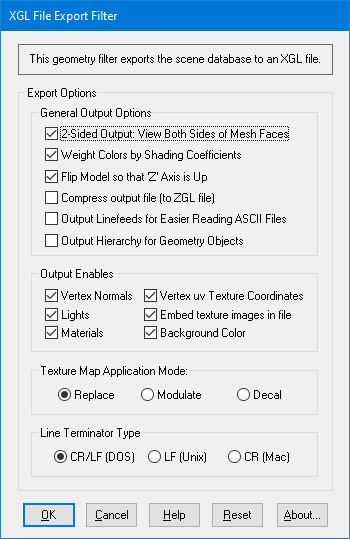
2-Sided Output: View Both Sides of Mesh Faces
If this option is enabled (checkmarked) then thetag will be output to the XGL file along with each mesh object. This will tell the destination XGL viewer program to allow both sides of the each polygon to be viewable. If this option is disabled then the destination viewer will cull polygons which are "back facing", those whose geometric normal faces away from the camera. Weight Colors by Shading Coefficients
Internally within Okino's NuGraf and PolyTrans software a material is associated with a number of attributes, some of which are the basic colors (ambient, diffuse, specular and luminous) and their corresponding "shading coefficients". The shading coefficients are basically intensity controls for the materials colors. For example, lowering the diffuse shading coefficient will make the diffuse color darker during rendering.If this option is enabled (checkmarked) then the shading coefficients will be multiplied into their corresponding material colors during export. This is the desired manner in which Okino materials are used. If this option is disabled then the shading coefficients will be ignored, and mostly probably this will result in exported materials which will appear brighter and more saturated.
Flip Model so that 'Z' Axis is Up
If this option is enabled (checkmarked) then the scene will be reoriented from Okino's internal Y-Up axis orientation to the XGL-preferred Z-Up axis orientation.Compress output file (to ZGL file)
If this option is enabled (checkmarked) then the final ASCII file will be compressed with ZLIB to create a .zgl compressed file. This will make the file much smaller in size.Output Linefeeds for Easier Reading ASCII Files
If this option is enabled (checkmarked) then entities output to the XGL file will be on their own separate lines in the file, while if this option is disabled then all entities will be output to the XGL file in one long line, with no CR/LF's separating each line. This will reduce file size but make the file near-impossible to read in a text editor.Output Hierarchy for Geometry Objects
If this option is enabled (checkmarked) then object hierarchy will be recreated inside the XGL file by using <object> tags inside each other. By default this option is disabled in which case all mesh objects are output in world-space coordinates and without any hierarchical relationships.Output Enables
These checkbox options control what type of data will be output to the XGL file.Vertex Normals
If this checkbox is enabled (checkmarked, which is the default) then vertex normals will be output to the XGL file. Vertex normals define how smooth or how faceted/angular the mesh data will appear.Lights
If this checkbox is enabled (checkmarked, which is the default) then lights will be output to the XGL file. Only ambient and directional lights are accommodated by XGL. Point and spot lights will be turned into semi-equivalent directional light sources.Materials
If this option is enabled (checkmarked) then material definitions will be output and associated with each mesh object. Ambient, diffuse, specular and luminous colors will be output as well as transparency and shininess.Vertex uv Texture Coordinates
If this checkbox is enabled (checkmarked, which is the default) then (u,v) texture coordinates will be output to the XGL file. (u,v) texture coordinates are needed for texture mapping. They define which part of a flat texture map will get applied to which part of the 3D mesh object.Embed texture images in file
If this option is enabled (checkmarked), and the 'Output Materials' option is enabled, then any texture map images will be directly embedded within the XGL file. This is the normal way of transferring texture images to an XGL viewer program.Background Color
If this option is enabled (checkmarked) then the background color will be output to the XGL file via thetag. Texture Map Application Mode:
These tags specify how texture pixels are combined with underlying color from the material. The texture color can either completely replace the underlying color, multiply with it, or mix with it.The following notation is used for this section:
- C Color value of the combined pixel
- A Alpha value of the combined pixel
- Ct Color value (R,G,B) of the pixel in the texture
- Cf Color value (R,G,B) of the pixel in the face
- At Alpha value of the pixel in the texture
- Af Alpha value of the pixel in the face
Replace
This tag specifies the replace texture function. The color obtained from the texture map will completely overwrite the base material color of an object.Texture pixels will be combined with face pixels as follows:
C = Ct A = AtModulate
This tag specifies the modulate texture function. The color obtained from the texture map will be multiplied into the base material color of an object.Texture pixels will be combined with face pixels as follows:
C = Cf * Ct A = Af * AtDecal
This tag specifies the decal texture function. The color obtained from the texture map will be mixed with the base material color of an object based on the alpha channel of the texture map.Texture pixels will be combined with face pixels as follows:
C = Cf(1-At) + CtAt A = Af