

 |
 |
|
|
| |
| You are here: Home » Import CAD Formats » SAT (ACIS) |
|



Support: 905-672-9328 Copyright © 2024 Okino Toronto, Ontario, Canada.  |
 |
|
 Importing Game Exchange 2 Files Importing Game Exchange 2 Files |
This geometry import converter reads in Game Exchange v2.0 ASCII files. Game Exchange is developed and maintained by IZware. This is a well developed import converter that handles geometry, instancing, materials, textures, lights, cameras and a subset of keyframed animation. The GameExchange file format is rich with content and this import converter handles the most important aspects of such content.
As a quick start, load in the main file which has the .grp file extension. This is the main GameExchange file which will read in all other sub-files.
Please see below for an overview of the Game Exchange file format and conversion mechanism. GameExchange files are typically generated by IZware's N-World and Mirai products; this converter acts as a natural extension to the N-World and Mirai export mechanism whereby Game Exchange files can be imported then re-exported to many new file formats not currently supported by N-World or Mirai. Game Exchange files can also be exported from specific versions of PowerAnimator v8+ and older Maya programs.
Exporting Game Exchange files from N-World or Mirai will require that you install the optional Game Exchange software and plug-in modules in these products. Please contact IZware for further information.
| NOTES |
- The special Game Exchange files named exchange2.llr and exchange2.dfa must
be located in the PolyTrans vcplugin directory or else the import converter
will abort pre-maturely (these files might also begin with the letters ge_).
- In NWorld, the coordinate system is right-handed; positive Y represents
up, positive X is right, and positive Z is forward.
- If the Game Exchange import libraries encounters errors during
execution, then these errors will be printed to the NuGraf or PolyTrans
command window in addition to being saved to the file ge_error.txt located in
the main NuGraf or PolyTrans home directory.
- Game Exchange v1 files cannot be imported.
- Game Exchange version 2.01 files and earlier will have inconsistent
normals because of a Game Exchange bug. Contact IZware for more
information on this. To created proper smoothed normals in NuGraf or
PolyTrans, use the process polygons tool found in the Geometry menu.
- Mirai allows multiple ambient light sources to be defined and exported.
However, few other 3D programs accomodate multiple ambient light sources.
This import converter will import only the last ambient light source defined.
- Mirai allows polygons to be grouped together into face parts. A polygon is
allowed to be associated with multiple face part definitions within Mirai. If
a Mirai object contains several face parts then this import converter breaks
apart the Mirai object into several sub-objects, each sub-object containing
the polygons of the face part and all the new sub-objects grouped together
under a yellow folder grouping node in PolyTrans/NuGraf; if a polygon belongs
to multiple face parts then the import converter will only consider the
polygon to belong to the first face part it comes across (thus the polygon
will not be duplicated during import).
- An object in Mirai is considered smooth if the smoothing flag is enabled
for its associated Mirai material definition. If the smooth flag is enabled
then this import converter uses the vertex normals imported from the
GameExchange files; if the smooth flag is disabled then this import converter
will generate new vertex normals which make the object appear faceted (not
smoothed; in other words, the auto-smoothing algorithm is enabled with an
angle of 0 degrees).
- Although cropping information is imported from a texture map definition, the concept of image cropping in Mirai is not the same as the concept of image cropping in NuGraf/PolyTrans. In Mirai cropping an image only makes less of that image visible on the textured surface; the scaling or appearance of the image does not change, only the amount of the texture is cropped. In NuGraf/PolyTrans, cropping an image sets the portion of the image which will be used in the texture mapping process; if have have a polygon texture mapped, a cropped image will make the cropped area of the image appear across the entire polygon face - the area of the polygon textured will remain the same, only the sub-set of the image which maps to this region will change.
| Good References |
- The file workbook.pdf in the Mirai workbook\pdf directory has a good tutorial on how to perform keyframed animation within Mirai.
| Features of this Import Converter |
Some of the features of the converter include:
- Reading of all Game Exchange v2.0 supported polygon geometry. Face parts are segmented into separate objects during import and placed under a single yellow folder node (grouping node).
- Reading of vertex normals, vertex uv texture coordinates and vertex colors. Due to a bug in Game Exchange, vertex normals are inaccurately exported from NWorld in GameExchange versions earlier than 2.02.
- Importing of scale, rotation and translation keyframe animation data for objects. Note this is the explicit keyframe type of animation data and not the offset form of animation data supported by Mirai.
- Reading of all materials and texture references.
- Objects which are instanced one or more times within Game Exchange v2.0 (cloned) are likewise instanced within the imported database. Thus, much memory is saved since only one true copy of the raw geometry is stored in memory for each of the instances. The only way to find out if objects have been instanced within NuGraf/PolyTrans is to examine the object definition name from which the instances are drived.
- The object hierarchy within the original Game Exchange v2.0 file is recreated during import.
- All cameras and lights types are supported.
- Each main material attribute of the Render and GLShade domains are mapped to equivalent internal surface attributes.
| Supported Material Attributes |
The following material attributes are imported from the Render domain:
- The ambient, diffuse, specular and luminous colors.
- The specular highlight size.
- Face opacity, color opacity and highlight opacity.
- Intensity of reflectance (converted to the ray traced reflection intensity value).
- Index of refraction (only the second value, the outgoing refraction index, is used).
- The smoothing/faceted flag is used to determine whether objects using the material will appear smoothed or faceted.
And the following texture mapping methods are imported for the Render domain:
- Diffuse, opacity, bump and reflection texture maps. Reflection maps are turned into spherical reflection maps within the PolyTrans/NuGraf software. Note: although bump mapping texture parameters are imported, some rendering programs may not show the bumps because no UV tangent information is transferred through GameExchange.
- Scale and offset parameters. GameExchange uses upper-left as the origin of the uv coordinate system which is converted to lower-left upon import.
- The rotation angle is not imported.
- The frame scale, offset and rotation parameters are not imported.
- The STD (allow texture to wrap) and CLAMP (dont allow texture to wrap) boundary conditions are converted.
- Bump map depth (intensity). It is divided by 4 during import.
- Cropping information. See NOTES section above for limitations.
| Successful Animation Export from Mirai |
There are several techniques to animate objects in Mirai. One of the popular methods (such as for facial animation) is to animate the linear, absolute or cylindrical displacement of vertices of an object. This converter, however, does not support this more popular form of Mirai animation. Rather, this import converter handles only keyframed animation in which the scale, rotation or translation of an entire object/camera/light is specified at a specific point in time. Keyframed animation is commonly performed in Mirai by placing objects/cameras/lights at different times then pressing the Keyframe button on the animation UI.
| How to Export Keyframed Animation from Mirai to GameExchange Files |
Before you can export keyframed animation to GameExchange files you must add a 'Record Game Exchange Animation' channel to the current animation script in Mirai. If this channel is not currently in your script perform these operations:
- Right click any dark grey area in the script editor to bring up the Operations menu.
- Left click 'Add Operation>GeometryIO>Record Game Exchange Animation' to bring up the Operations Properties dialog box.
- In the Selection box, select the geometry to export to GX2. You need only choose the geometry object that moves.
- In the Lights box select the lights that you want to send to GX2. Again, only moving lights need be recorded.
- If you would like to record the animation of the camera then check the 'Camera?' check box.
Finally, play your animation at least once before exporting the files to GameExchange by pressing the animation Play button on the Mirai user interface.
| To export out the Mirai scene to GameExchange2: |
- Left click File>Export>Game Exchange to bring up the Export Game Exchange dialog box.
- Choose the target directory where the exported GX2 files will reside. Then choose a base name for the .gof, .gmf,... files.
- In the Script pull down menu, select the animation script you would like to export.
- In the Objects selection box, select the objects that you would like to export, moving or not.
- In the Lights selection box, select the lights that you would like to export, moving or not.
- Click Export to export the files.
** Please note: We have encountered problems while exporting keyframed animation to GameExchange from Mirai v1.1. For example, directional light animation will not output any keyframe information and/or the keyframe information inside Mirai will go crazy after we ask the data to be recorded for GameExchange output. It seems that some debugging is necessary for parts of the Mirai keyframe animation system.
| About Game Exchange |
IZware's Game Exchange provides a mechanism for converting object, material, and animation data created in IZware's NWorld and Mirai programs into a set of intermediate ASCII file formats. These ASCII files can then be read by Okino's GameExchange import converter for subsequent export to other 3D file formats.
Game Exchange data is saved to disk as several distinct files that form a set:
- GRP (the main file to import; contains the scene file list)
- GOF (instances of raw object definitions)
- GBF (raw object body definitions from which instances can be easily created)
- GMF (material definitions)
- GAF (animation)
- GSF (skeleton - not used during import)
- GLF (lights)
- GCF (camera)
- GEF (environment)
Each of these file types describes a different aspect of the scene exported from NWorld or Mirai. In addition to the standard set of NWorld and Mirai parameters exported with each file type, the user can also define custom parameters for the scene. This allows the user to quickly add parameters that are supported by the target game engine.
- GRP Files - GRP files contain references to the files that must be parsed together. Since all of the files for a scene will be parsed together, a GRP file lists all of the files for a scene. If the scene is animated, all of the animation data is kept in a GAF file, which references the GRP file.
- GOF Files - GOF files describe a single object. This object may be a terminal object or a hierarchical object with several subobjects. More recent versions of GameExchange place the raw geometry data in the GBF (body) file and the reference/instance to the geometry data in the GOF file (the matrix and material assignments).
- GAF Files - GAF files describe from one to three elements:
- Animated light objects
- Animated camera object
- A single object
The location of the object and animated lights and camera are described frame-by-frame. If an object is composed of subobjects, the location of the object is described first and is followed by the location of the subobjects. The GAF file references the GRP file (described above) for the scene, but is referenced by no other files.
- GMF Files - Materials associated with an object are described in a GMF file, which contains descriptions for one or more materials. A GOF file may reference only a single GMF file, but a GMF file may be referenced by many GOF files.
- GSF Files - GSF files describe single or multiple skeletons including:
- Skeleton hierarchy including the skeleton name, bones, and joints
- Descriptions of all base states
- Descriptions of each pose
- Listing of all hard and soft parts associated with each bone
Any skins associated with the skeleton are exported as gobjects, which are exported Mirai objects. They are described in GOF files.
- GLF Files - GLF files contain information about all the lights in a scene exported from Mirai. If the light was animated, the LGT file contains the initial position of the light; frame by frame animation data is included in the GAF file.
- GCF Files - You view scenes in Mirai through a camera. A GCF file contains information about the camera. If the camera was animated, the GCF file contains the initial position of the camera; frame by frame animation data is included in the GAF file.
| Dialog Box Options |
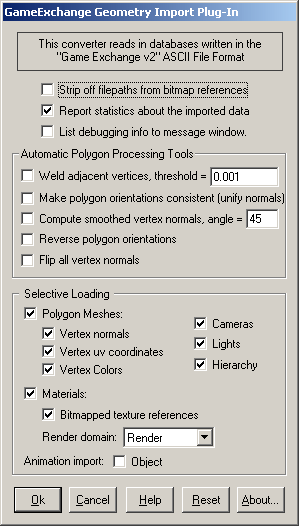
Strip Off Filepaths From Bitmap References
If this checkbox is check-marked then any bitmap references in the Game Exchange material files will have their filepath removed leaving just the filename.Report Statistics About the Geometry File
If this checkbox is check-marked then parsing statistics will be displayed in the message window after the Game Exchange database has been imported.Output Debugging Into to Message Window
If this checkbox is check-marked then specific debugging information will be listed in the message window (for the Windows version of this software) or on the command line (for the SGI version).Automatic Polygon Processing Tools
The following options are applicable once the Game Exchange database has been read into memory but before the resulting polygonal data has been stored within the converter's internal database. They allow the polygon data to be welded, unified and optionally smoothed. These options are disabled by default since most data imported from Game Exchange will not require these processing functions to be applied; however, if you find that the imported vertex normals look wrong, or bad, then try enabling these options.
Weld Adjacent Vertices, Threshold = #
If this checkbox is enabled (check-marked) then the vertex welding operation will be applied to all polygon vertices once the Game Exchange database has been read into memory and the objects created. Vertex welding collapses adjacent vertices which are within a distance less than or equal to the threshold value specified on the dialog box This welding operation should be performed if the Compute Smoothed Vertex Normals option (see below) is enabled. Note that welding of vertices can only occur within a single object and not between different objects. This option is disabled by default.Threshold Value Type-In
If the distance between two vertices is less than or equal to this number, and the Weld Vertices checkbox is check-marked (enabled) then the two vertices will be collapsed (welded) into one.Make Polygon Orientations Consistent (Unify Normals)
If this checkbox is enabled (check-marked) then the Game Exchange import converter will walk across the polygon mesh and reorient each polygon so that it has the same orientation as its neighboring polygon(s). Consistent polygon orientation is a prerequisite for the 'Compute Smoothed Vertex Normals' option (described below).Notes:
- This function will only work if neighboring polygons share the same vertices; if this is not the case then enable the 'Weld Vertices' option described above.
- The unification of normals can only occur within a single object and not between different objects.
- This option is enabled by default and should be quite fast for most objects.
Compute Smoothed Vertex Normals, Angle = #
If this checkbox is enabled (check-marked) then new vertex normals will be computed for a polygon regardless if it already has vertex normals already assigned from the imported Game Exchange database. The smoothing criterion is based on the angle between adjacent polygons; common smoothed vertex normals will be computed if the angle between their geometric surfaces normals is less than the Angle type-in value described below.If this checkbox is disabled (un-checkmarked) then no new vertex normals will be created.
NOTE: for this option to work properly the input data must have its vertices welded together so that adjacent polygons share the same vertices (the Weld Vertices checkbox must be enabled (check-marked)). You may optionally have to enable the Unify Normals option so that the polygon normals are oriented properly in order for the smoothed vertex normals to be computed.
Smoothing Angle Type-in
This type-in value sets the cut-off smoothing angle (in degrees) used by the vertex normal computation algorithm. If the angle between two adjacent polygons is greater than this number then no smoothing will occur (a crease will be evident between the two polygons), else smoothing will occur where the polygons meet. The default angle is 45 degrees; higher values will make the surface smoother.Reverse orientation of all polygons and normals
If this option is enabled (checkmarked) then the orientation of all polygons will be reversed (this will effectively swap the orientation of the polygons geometric normals).Flip normals of all polygons
If this option is enabled (checkmarked) then the vertex normals of each polygon will be flipped.Selective Loading
The following checkboxes allow all or only some parts of the Game Exchange database to be loaded:Polygon Meshes
If checkmarked, then load in the polygonal mesh.Vertex Normals
Import normals from each vertexVertex uv Coordinates
Import uv texture coordinates from each vertexVertex Colors
Import RGB colors from each vertexCameras
If checkmarked, then load in the camera definitions.Lights
If checkmarked, then load in the light definitions.Hierarchy
If checkmarked, then the object hierarchy is recreated during import.Materials
If checkmarked, then load in all of the material definitions. See above for a list of which material attributes are imported.Bitmapped Texture References
If checkmarked, then all references to bitmap images for use as textures will be loaded.Render Domain
Nichimans Mirai allows material definitions to be created for different domains, such as materials related to rendering (the render domain), materials related to OpenGL (GL Shade domain), PlayStation, Lightscape, etc. This import converter can selectively load the materials definitions either from the render domain or from the GLShade domains.Object Animation
If checkmarked, then keyframe-only animation data is imported for objects. NOTE: only keyframe data is imported and none of the offset/deform animation data that is common to GameExchange scene is handled. No vertex or skin/bones deformation animation is accomodated. We have encountered bugs in the GameExchange output of animation data for Mirai which will hopefully be fixed as new versions of Mirai are released.