

 |
 |
|
|
| |
| You are here: Home » Import CAD Formats » NGRAIN's 3KO Solutions |
|



Support: 905-672-9328 Copyright © 2026 Okino Toronto, Ontario, Canada. |
 |
|
 Exporting NGRAIN 3KO and NGW Files Exporting NGRAIN 3KO and NGW Files |
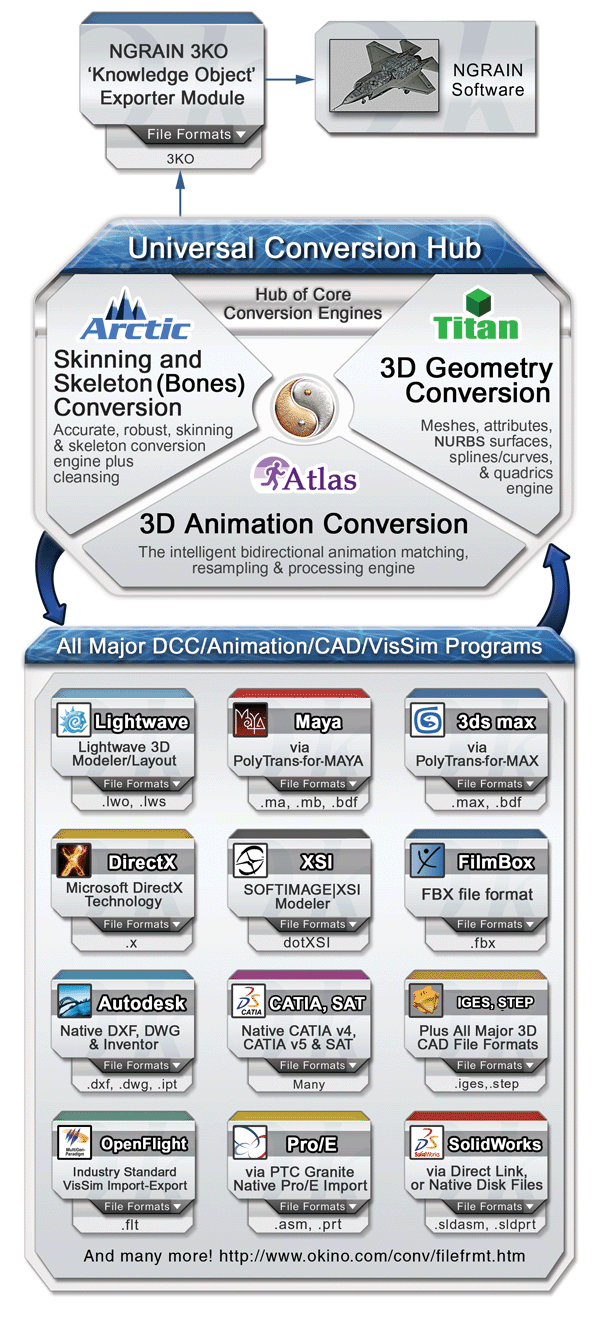
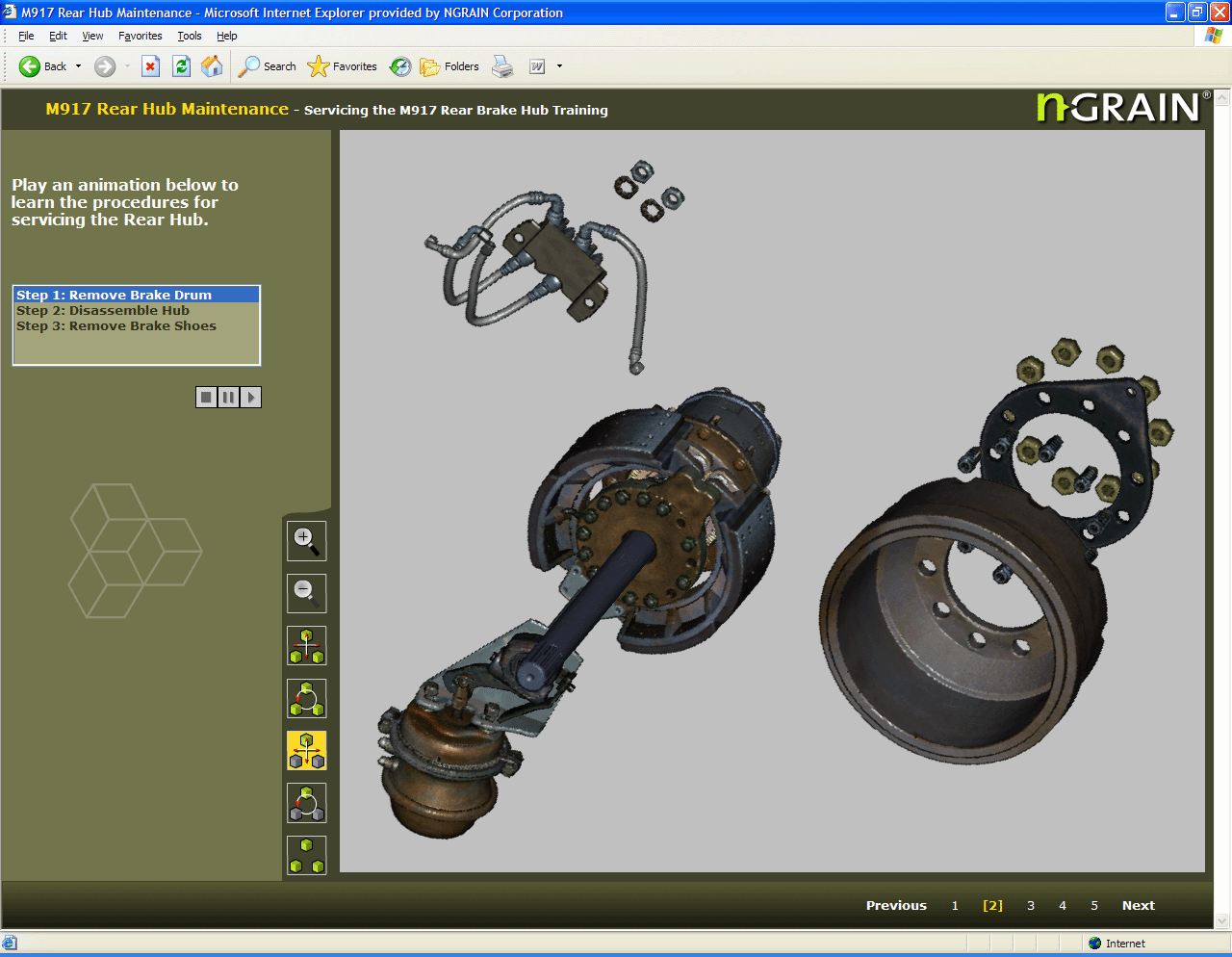
The NGRAIN Export Converter for Okino's PolyTrans|CAD supports the conversion of all 3D importer formats supported by PolyTrans to the NGRAIN format (3KO). This NGRAIN Export Converter also allows you to convert 3D files one at a time or by batch conversion.
If you have PolyTrans-for-3dsMax or PolyTrans-for-Maya installed on your computer then you will also be able to export NGRAIN files natively from within the user interfaces of MAX and Maya.
For some background about this NGRAIN exporter,
“NGRAIN has become renowned as a major provider of interactive 3D training solutions for the aerospace, defense, and manufacturing sectors, whereas Okino has become well known as a major provider of 3D CAD, DCC VR/AR and VisSim conversion technology for the same market segments over the last 3 decades," said Robert Lansdale, President and CEO of Okino Computer Graphics, Inc. “It was a natural progression for Okino and NGRAIN to collaborate on the development on a tight pipeline between Okino 3D conversion software and NGRAIN’s interactive 3D training solutions. Rather than purchasing many disparate conversion utilities, packages and licenses, the Okino/NGRAIN collaboration provides customers with a one stop solution for funneling all major 3D data sources into NGRAIN software at a reasonable and fixed cost, with excellent hands-on customer support. I am pleased to see this mutual product offering as another result of our ongoing and evolving working relationship with NGRAIN."
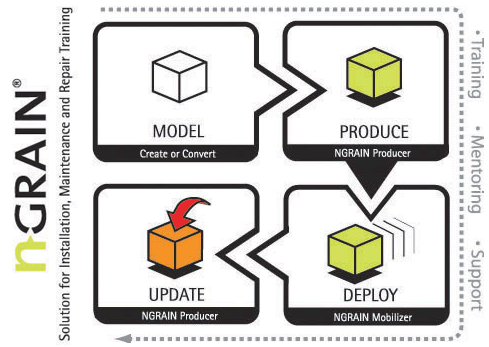
“NGRAIN’s focus is to provide a complete end-to-end training solution. For our customers that have existing 3D models, we partner with companies such as Okino to provide a translation solution. With PolyTrans|CAD, our customers can quickly and easily convert most 3D file formats directly to the NGRAIN format” said Erik Kaas, Director of Strategic Business Development at NGRAIN. “Okino has been an NGRAIN partner for close to two decades. Together, we provide a complete solution that allows our customers to repurpose existing 3D content for their downstream training needs."
| Viewing NGRAIN Files |
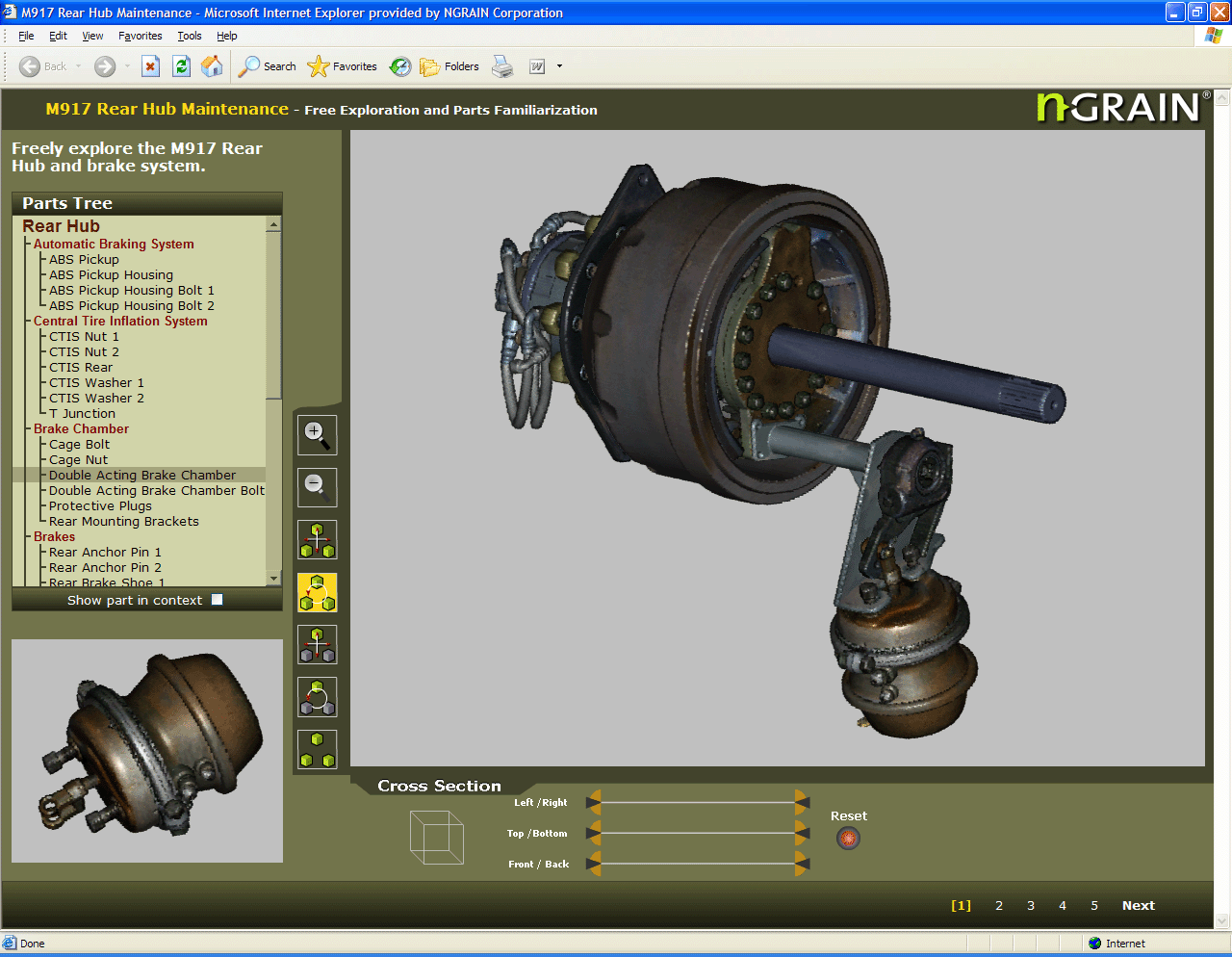
To view NGRAIN 3KO files, you need to use the free NGRAIN viewer, which can be downloaded at http://http://www.ngrain.com.
To view NGRAIN NGW files, you need a specialized viewer. For further information on viewing NGW files, email constructor@ngrain.com.
| Technical Support |
Technical support is available via e-mail or by telephone for the NGRAIN Export Converter:
- E-mail: support@ngrain.com
- Telephone: 1.866.420.1781 (Toll Free)
| Converting a Single File |
You can convert a single 3D file from one file format, such as 3ds Max, to the NGRAIN 3D Knowledge Object (3KO®) file format.
- Open the file that you want to convert.
- On the Okino Translate! main menu, point to Export 3D Geometry, and then click NGRAIN file. The NGRAIN Export Filter dialog box appears:
- Under Dimension, there are 2 Unit Types selectable through the radio button: "Voxels", and "Voxels Per Meter".
For "Voxels" mode, select or enter an integer from 1 to 65535.
This option defines the size in voxels of the converted model. You only need to specify the longest dimension of the model. The other dimensions are determined automatically so that the aspect ratio of the original model is preserved.
To give an example of how the dimension value can be chosen, imagine a model that has dimensions of 10 units × 15 units × 5 units. The Y-axis has the largest dimension (15 units) in this example. Thus, a dimension of 450 means a resolution of 300 × 450 × 150 voxels, and a dimension of 600 means a resolution of 400 × 600 × 200 voxels. Note that each of the voxels is cubical (that is, each voxel has equal dimensions). If a data accuracy of 1/z inch is desired, and each voxel is a cubic 1/z inch, then for a 10" × 15" × 5" region, a voxel resolution of 10z × 15z × 5z is needed, so the Voxel Set dimension would be 15z.
As a general rule, models of "256**3" voxels are of adequate quality for simple models. For more complex or detailed models, you may want higher settings. Higher settings will increase the file size and the processing time may increase for very large models. The maximum workable size is "4000**3" voxels, as larger models may be too demanding of memory and slow in processing. The default size is "750**3" voxels.
Changes to this option are persistent. For example, if you change the Dimension setting from 750 to 2000, the change will still be in effect the next time you use PolyTrans to export to an NGRAIN file.
For "Voxels Per Meter" mode, every x,y,z unit of 1.0 in your model will be considered 1 meter. Then when converted, each meter will have the number of voxels you specify. Note "Voxels Per Meter" is a ratio of voxels per 1.0 meter. Therefore you can set multiple models to have the same, consistent, voxels per meter resolution and not have to worry about having to recalculate the exact number of voxels for each model.
- Under Visual Quality, move the slider to set the level of visual quality.
This setting involves scaling the resolution of the model upwards by a specified factor to determine more accurate settings of which voxels are occupied, what their color values are, and what their normal values are when the model is scaled back down to its intended size.
- Click the Advanced tab. The advanced export options appears:
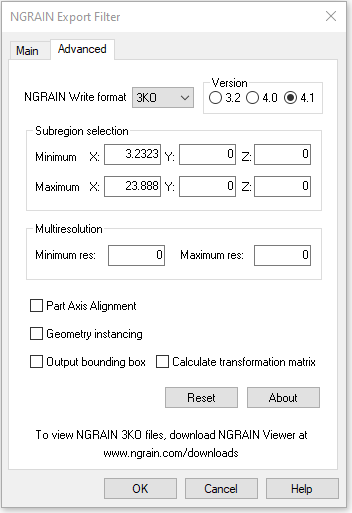
- In the NGRAIN Write format list:
- Select 3KO if the output file is to be used by applications such as NGRAIN® Producer and NGRAIN® Viewer.
- Select NGW if the output file is to be used by an NGRAIN Constructor-based application.
- Under Version, select the 3KO version to which you want to convert. Using the latest is recommended unless you have specific requirements.
- Under Subregion selection, you can define a subregion of the model that you want to convert. For example, if you had a model of a passenger jet, but you only wanted to convert one of the wing-mounted engines, you could specify a box around the wing-mounted engine part and only that subregion would be converted. You must provide two floating point, world space coordinates for each dimension. These coordinates should specify minimum and maximum values for each axis (x,y,z) in the world space in which the original model resides. Default minimum and maximum settings are (0,0,0) and (0,0,0).
- If you are converting to a version 4.0 file or later, you can convert the file to a multiresolution model. Under Multiresolution, enter the minimum size and maximum size, in voxels, that the longest axis of a converted part should be. For example, if you set the minimum resolution to 20, parts that usually convert at less than 20 voxels will convert at 20 voxels.
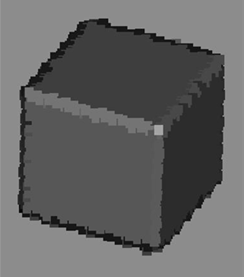
- If you are converting to a version 4.1 file and parts in your model are oriented at odd angles, these angles can cause the parts to show aliasing or the staircasing effect after conversion:
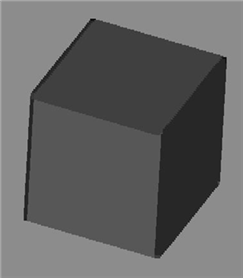
Non-axis-aligned partIf you select the Part Axis Alignment check box, these parts will be converted at their original orientation and then rotated after conversion:
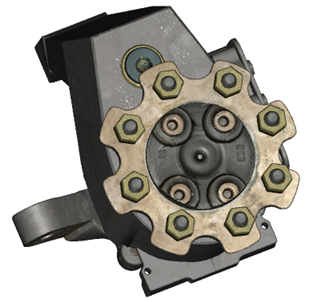
Axis-aligned part- If you are converting to a version 4.1 file and your model contains parts that are repeated or re-used, for example, lug nuts in a gear hub, select the Geometry instancing check box. These parts will be converted and loaded once, instead of copy converted and loaded for each part. This decreases 3KO file size and load time.
Note: If parts are repeated in the source model but are oriented differently, for example, if there are two sets of three pistons in a car engine, but each set is pointing in a different direction, use the Part Axis Alignment option to create one instance of six pistons, instead of two sets of one instance of three pistons.
- If you want to generate bounding box data during conversion, select the Output bounding box check box. A file named boundingbox.xml is created within the NGW/3KO file. The file contains the min and max (x,y,z) coordinates describing a tight bounding box surrounding the model.
Note: The Output bounding box check box outputs values for a bounding box that represent a left-handed coordinate system (as is used by NGRAIN graphics). You may want to use the information from the Output bounding box result to arrive at an appropriate subregion conversion option.
However, the subregion conversion option takes right-handed coordinates. As a result, be aware that the Output bounding box coordinates and the subregion coordinates differ by a negation of the Z coordinates (that is, left-handed coordinates).
- If you want to convert the transformation matrix of the original model, select the Calculate transformation matrix check box. The center of NGRAIN models are placed at the exact center of the scene or world space. If you are converting several models for use in the same scene, preserving the transformation information of the model will prevent them from being placed on top of or inside each other. This option also preserves the relative positions of the different models.
- Click OK
- Navigate to the folder in which you want to save the 3KO file, enter a file name, and then click Save.
| Main Export Options |
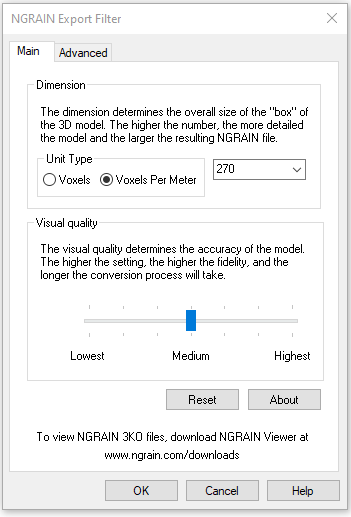
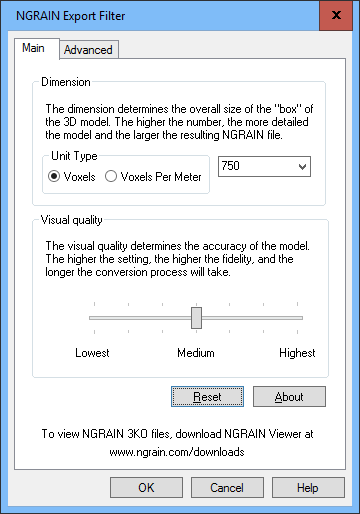
The Main tab provides options to define the dimensions of the exported 3D data and to determine the desired visual quality of the model.
Dimension and Visual Quality
Dimension
The dimension determines the overall size of the "box" of the 3D model. The higher the number, the more detailed the model and the larger the resulting file.This option defines the size in voxels of the converted model. You only need to specify the longest dimension of the model, which can be any integer up to 4000. The other dimensions are determined automatically so that the aspect ratio of the original model is preserved.
To give an example of how the dimension value can be chosen, imagine a model that has dimensions of 10 units x 15 units x 5 units (inches, meters, etc ). The Y-axis has the largest dimension (15 units) in this example. Thus a dimension of 450 means a resolution of 300 x 450 x 150 voxels, and a dimension of 600 means a resolution of 400 x 600 x 200 voxels. Note that each of the voxels is cubical (that is, each voxel has equal dimensions). If a data accuracy of 1/z inch is desired, and each voxel is a cubic 1/z inch, then for a 10" x 15" x 5" region, a voxel resolution of 10z x 15z x 5z is needed, so the Voxel Set dimension would be 15z.
As a general rule, models of “256**3” voxels are of adequate quality for simple models. For more complex or detailed models, you may want higher settings. Higher settings will increase the file size and the processing time may increase for very large models. The maximum workable size is “4000**3” voxels, as larger models may be too demanding of memory and slow in processing. The default size is “750**3” voxels.
Clicking the Dimension arrow displays the following predefined options:
- 500, 750, 1000, 2000, and 4000
Note: The predefined options can be overwritten by entering any integer from 1 to 4000.
Changes to this option are persistent. For example, if you change the Dimension setting from 750 to 2000, the change will still be in effect the next time you use PolyTrans to export to an NGRAIN file.
Visual Quality
The visual quality determines the accuracy of the model. The higher the setting, the higher the fidelity, and the longer the conversion process will take.This option allows you to set the level of visual quality. This setting involves scaling the resolution of the model upwards by a specified factor to determine more accurate settings of which voxels are occupied, what their color values are, and what their normal values are when the model is scaled back down to its intended size.
There are seven values for this setting ranging from Lowest to Highest, with Medium Low as the default value. Each notch on the slider represents a different visual quality setting. From left to right, the settings are:
- Lowest, Low, Medium Low, Medium, Medium High, High, and Highest
Note: By moving the slider to the right, the higher you set the Visual Quality, the better the visual quality of the model produced, but, also, the slower the generation of the model.
Clicking Reset returns values to their default settings.
| Advanced Export Options |
The Advanced tab provides further options for fine-tuning the converted model.
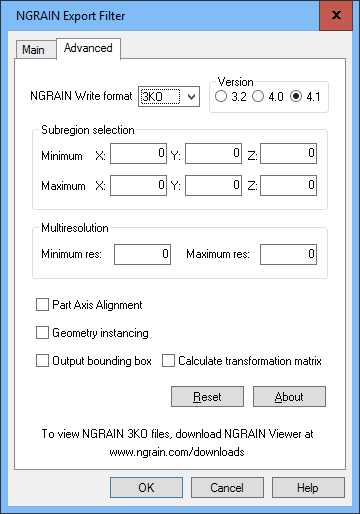
NGRAIN Write Format
- 3KO -- Click 3KO if the output file is to be used by applications such as NGRAIN Producer and/or NGRAIN Viewer.
- NGW -- Click NGW if the output file is to be used by an NGRAIN Constructor-based application.
Under Version, select the 3KO version to which you want to convert. Using the latest is recommended unless you have specific requirements.
Subregion Selection
Subregion selection allows you to define a subregion of the model that you want to convert. For example, if you had a model of a passenger jet, but you only wanted to convert one of the wing-mounted engines, you could specify a box around the wing-mounted engine part and only that subregion would be converted. You must provide two floating point, world space coordinates for each dimension. These coordinates should specify minimum and maximum values for each axis (x,y,z) in the world space in which the original model resides.Default minimum and maximum settings are (0,0,0) and (0,0,0).
Multiresolution
If you are converting to a version 4.0 file or later, you can convert the file to a multiresolution model.
Under Multiresolution, enter the minimum size and maximum size, in voxels, that the longest axis of a converted part should be. For example, if you set the minimum resolution to 20, parts that usually convert at less than 20 voxels will convert at 20 voxels.
Part Axis Alignment
If you are converting to a version 4.1 file and parts in your model are oriented at odd angles, these angles can cause the parts to show aliasing or the staircasing effect after conversion:
Non-axis-aligned partIf you select the Part Axis Alignment check box, these parts will be converted at their original orientation and then rotated after conversion:
Axis-aligned partGeometry Instancing
If you are converting to a version 4.1 file and your model contains parts that are repeated or re-used, for example, lug nuts in a gear hub, select the Geometry instancing check box. These parts will be converted and loaded once, instead of copy converted and loaded for each part. This decreases 3KO file size and load time.
Note: If parts are repeated in the source model but are oriented differently, for example, if there are two sets of three pistons in a car engine, but each set is pointing in a different direction, use the Part Axis Alignment option to create one instance of six pistons, instead of two sets of one instance of three pistons.
Output bounding box
If the Output bounding box check box is selected, the bounding box data is generated during the conversion, and a file named "boundingbox.xml" - containing the min and max (x,y,z) coordinates describing a tight bounding box surrounding the model - is created within the NGW/3KO file.
The Output bounding box check box is cleared by default, and the bounding box data is not generated unless you select the check box.
Note: The Output bounding box check box outputs values for a bounding box that represent a left-handed coordinate system (as is used by NGRAIN graphics). You may want to use the information from the Output bounding box result to arrive at an appropriate subregion conversion option.
However, the subregion conversion option takes right-handed coordinates. As a result, be aware that the Output bounding box coordinates and the subregion coordinates differ by a negation of the Z coordinates (i.e., left-handed coordinates).
Calculate Transformation Matrix
If the Calculate transformation matrix check box is selected, the transformation matrix of the original model will be converted. If you are converting only a single model within a 3D scene, then this setting is likely to be of little interest.However, as the center of NGRAIN models are placed at the exact center of the scene or world space, and if you are converting several models for use in the same scene, then preserving the transformation information of the model will prevent them from being placed overtop of or inside each other. This option also preserves the relative positions of the different models.
The Calculate transformation matrix check box is unselected by default, and the transformation matrices are not converted unless you select the checkbox.
| Supported Texture Map Formats |
When converting a single 3D file, the texture map file can reside in the same directory as the source file. You may want to set texture file search paths so that the conversion process search correct directories for texture maps.
See the Texture File Search Paths section in Batch Conversion Options for further information.
Note: Texture maps are converted as long as the file formats are supported.
The following table lists the supported raster image formats for texture map conversion.
Format Type File Extension Windows Bitmap .bmp DirectDraw Surface .dds Graphics Interchange Format .gif Icons .ico, .cur Joint Photographic Experts Group .jpg, .jpe, .jpeg Interlaced Bitmap .lbm Multiple-image Network Graphics animation .mng PhotoCD .pcd PIC .pic Portable Network Graphics .png PNM .pbm, .pgm, .ppm, .pnm PhotoShop .psd Silicon Graphics .sgi, .bw, .rgb, rgba Targa .tga Tagged Image File Format .tif, .tiff Raw Data Any
| Process for NGRAIN file format selection from within Autodesk 3ds Max and Maya |
You can export your 3ds Max (.max) and Maya (.ma and .mb) files to either the 3KO or NGW format. However, the plug-in assumes that you are going to export to the same format you selected last time.
For example, if the last file you exported was to the 3KO format, the Select the Export Filename dialog will only list the 3KO extension in the Save As Type list. If you now want to export to the NGW format, simply type a name in the File name box and ignore the file extension. Click Save. You can now change the file format on the Advanced tab. Note that the next time you export a file, the Select the Export Filename dialog will only list the NGW extension.
Memory Considerations
As 3ds Max and Maya are memory-intensive applications, it may not always be possible to convert very large files to the NGRAIN file format from within 3ds Max or Maya. In this case you should write out an Okino .bdf file from within 3ds Max or Maya and then use the stand-alone PolyTrans program to read in the .bdf and convert it to NGRAIN format (please close down 3ds Max and Maya to reduce overall memory usage).