

 |
 |
|
|
| |
| You are here: Home » Import CAD Formats » NGRAIN's 3KO Solutions |
|



Support: 905-672-9328 Copyright © 2026 Okino Toronto, Ontario, Canada. |
 |
|
 Exporting QuickDraw 3DMF Files and History of the Apple QuickDraw 3D File Format Exporting QuickDraw 3DMF Files and History of the Apple QuickDraw 3D File Format |
The 'Apple QuickDraw 3D Metafile' format (3DMF) is an old late 1990's 3d data file format once used on the Apple Macintosh and Windows platform. This 3DMF export file converter is a complete implementation of the 3DMF file format specification. The main features include:
- Proper translation of all forms of geometry into the 3DMF 'Mesh' primitive, complete with support for the 'VertexSetAttributeList', 'FaceSetAttributeList' and 'MeshCorners' sub-objects.
- Complete support for n-sided polygons with recursive holes and islands.
- Object hierarchy support by embedding mesh data within 'Group' nodes.
- All vertex attributes are supported, including: normals, (u,v) texture coordinates, (U,V) tangent vectors and diffuse color. All mesh output has been optimized to produce the smallest file size according to which vertex attributes are present.
- NURB patches output as the 3DMF 'NURBPatch' primitive, or they are optionally output as polygons.
- Embedding of bitmap texture images within the 3DMF file. If a bitmap image is used more than once for multiple objects then only one copy is ever used within the file ('Reference()' keywords are used to instantiate the image).
- If more than one texture map is assigned to a single object then that object will be exploded into multiple separate meshes, each of which is assigned a single texture map (this is a complex operation!).
- Texture scale, offset and wrap-arounds (Clamp/Wrap flags) are properly handled and output. This will allow for perfect translation of texture mapped surfaces!
| Dialog Box Options |
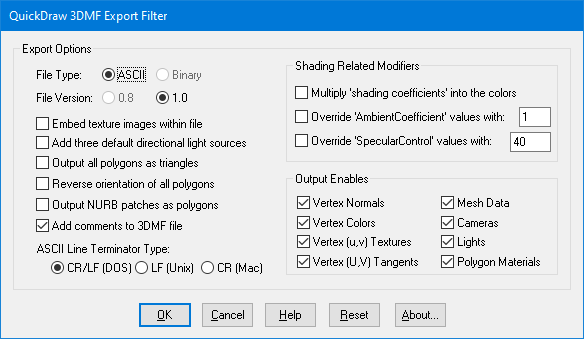
The following information explains the various options on the dialog box:
Export Options
File Type = ASCII, Binary
If the radio button is set to Binary then the 3DMF file will be written in the binary file format. If set to ASCII then the 3DMF file will be written in the ASCII file format.
File Version = 1
This selects the desired 3DMF output file format. At the present time this can only be set to 1.
Embed Texture Images Within File
If this option is enabled (checkmarked) then any texture images referenced by the 3DMF data will be embedded directly within the file. The converter can convert and embed the following file formats (and all of their variations): BMP, FLIC, GIF, CEL (Autodesk), JPEG, Targa and TIFF. If a texture image is referenced more than once then the 3DMF output converter will use the 'Reference()' statement to reference the previously output bitmap rather than create another varbatim copy of the bitmap data inside the file.
Add Three Default Directional Light Sources
If this option is enabled (checkmarked) then 3 directional light sources will be inserted into the 3DMF file: one to the upper-left, one to the upper-right and one in the middle-back. Without these light sources the scene may look very dark when viewed in the destination program. If this option is disabled then no default light sources will be output but rather only the lights currently defined in the internal database will be output to the 3DMF file.
Output All Polygons As Triangles
If this option is enabled (checkmarked) then all polygons which have 4 or more sides will be converted to triangles prior to output. Concave polygons and polygons with holes will be properly triangulated.
Reverse Orientation of all Polygons
If this option is enabled (checkmarked) then the orientation of all polygons will be reversed (this will effectively swap the orientation of the polygons geometric normals).
Output NURB Patches as Polygons
If this option is enabled (checkmarked) then all NURB patches will be output to the 3DMF file as polygons. If disabled then all NURB patches will be output as 'NURBPatch' primitives.
Output Comments to 3DMF File
If this option is enabled (checkmarked) then comments will be embedded within the ASCII 3DMF file. These comments annotate various aspects of the 3DMF data. If this option is disabled then no comments will be output to the file which will make it smaller and faster to load.
Line Terminator Type
This common option selects which line terminator is to be used for the ASCII output file:
- Files destined for DOS/PC machines should use CR/LF,
- Files for UNIX machines should use LF, and
- Files for Macintosh machines should use CR.
The default is specific to which machine this converter is presently running on: CRLF for DOS/PC, LF for UNIX and CR for Macintosh. This option normally does not have to be specified unless you will be using the exported ASCII file on a different type of computer.
Shading Related Modifiers
Multiply shading coefficients in the Colors
- Most 3d rendering problems use a shading model based on a RGB color and a series of shading coefficients. For example, a diffuse coefficient value of 0.5 would cause the current diffuse material color to be scaled by a value of 0.5 during the shading calculations. These coefficients are imported from 3D data files such as those written by Lightwave and PolyTrans. However, QuickDraw 3D does not have any notion of these shading coefficients but rather requires these values to be directly multiplied into the ambient and diffuse material colors.
If this option is enabled then the shading coefficients defined within the internal 3d database will be multiplied into the colors before they are output to the 3DMF file - in some cases this may make the exported data look better (less ambient in most cases). If the option is disabled (the default) then the coefficients are ignored and only the raw ambient and diffuse colors are output to the 3DMF file which may produce satisfactory results in the destination 3DMF viewer program.
Basically, if the final scene looks flat or too ambient (even with 1 or 2 light sources in the scene) then try enabling this option.
Override 'AmbientCoefficient Values With [value]
- The AmbientCoefficient keyword within a 3DMF file controls the amount of ambient light that is added to a materials color. If this value is set to 0 then no ambient light is added and if the value is set to 1.0 then 100% of the ambient light is added. Many files exported to 3DMF have this value set incorrectly causing objects that appear either too dark or too ambient. To overcome this problem, enable (checkmark) this option and change the type-in numeric value to the desired AmbientCoefficient value - this will cause all ambient coefficient values in the exported file to take on the value specified in the type-in box.
Override SpecularControl Values With [value]
- The SpecularControl keyword within a 3DMF file controls the size of the specular highlight seen on a shiny object. If this value is set to 0 then no highlight is seen. Values from 1 to 300 will make the highlight becoming increasingly narrower, and hence, the object(s) will appear to become more shiny. If this checkbox is enabled (checkmarked) then the numeric value shown in the type-in will be used throughout the 3DMF file for the SpecularControl value of each material - this allows you to modify the specular highlight size to a specific value for material definition in the file.
Output Enables
The check boxes inside the Output Enables section control what type of data will be output to the 3DMF file:
- Vertex Normals
- If this option is enabled (checkmarked) then any normals that are assigned to polygon vertices will be output to the 3DMF file.
- Vertex Colors
- If this option is enabled (checkmarked) then any colors that are assigned to polygon vertices will be output to the 3DMF file.
- Vertex (u,v) Textures
- If this option is enabled (checkmarked) then any (u,v) texture coordinates that are assigned to polygon vertices will be output to the 3DMF file.
- Vertex (U,V) Tangents
- If this option is enabled (checkmarked) then any (U,V) tangent vectors that are assigned to polygon vertices will be output to the 3DMF file. Tangent vectors are typically needed to perform bump mapping.
- Mesh Data
- If this option is enabled (checkmarked) then all geometry currently defined in the 3d database will be output to the 3DMF file.
- Cameras
- If this option is enabled (checkmarked) then the parameters of the current default camera will be output to the 3DMF file. Both perspective and orthographics cameras are accomodated.
- Lights
- If this option is enabled (checkmarked) then any ambient, point, directional or spot light sources will be output to the 3DMF file.
- Polygon Materials
- If this option is enabled (checkmarked) then any material attributes assigned to individual polygons will be output to the 3DMF file using the 'FaceSetAttributeList' structure. This option will also allow default material attributes to be assigned to a mesh.