|
 |
|
|
| |
| You are here: Home » Import CAD Formats » Solid Edge |
|



Support: 905-672-9328 Copyright © 2024 Okino Toronto, Ontario, Canada.  |

|
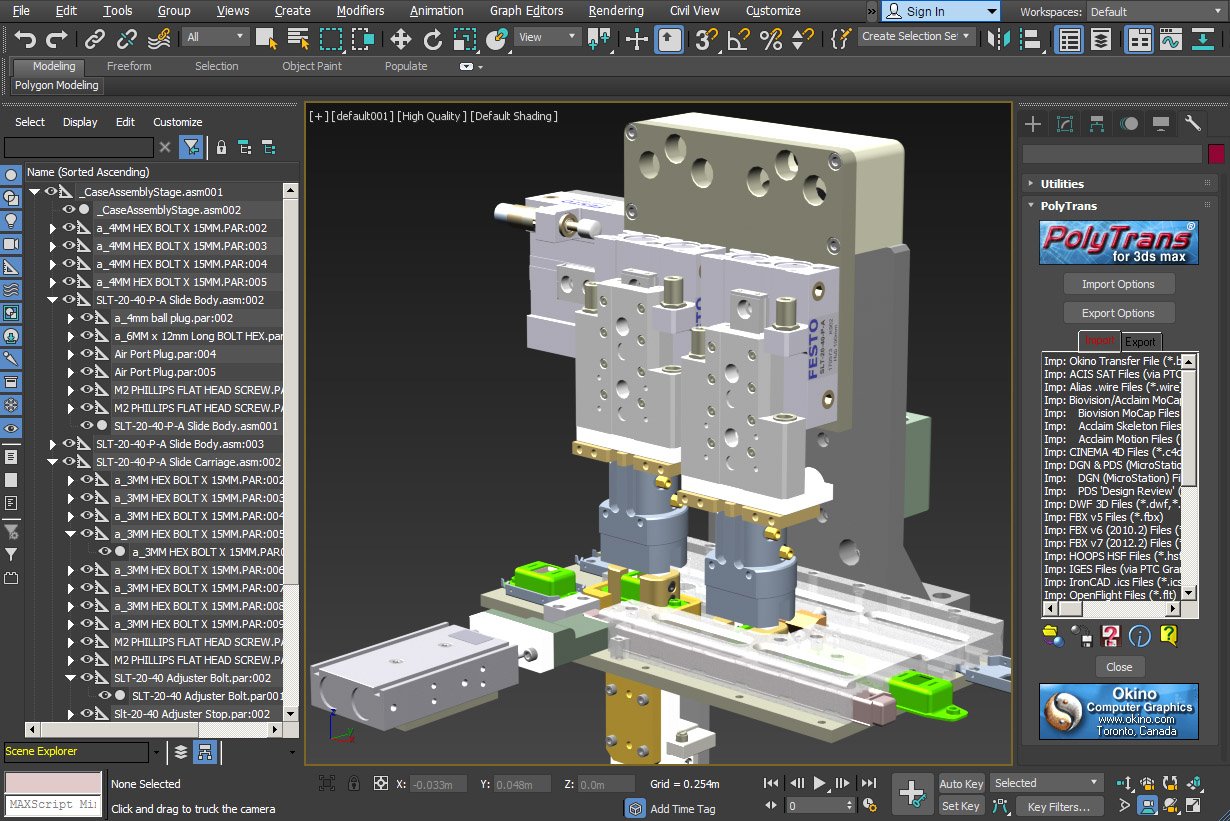
Solid Edge 'Case Assembly' Model Imported into Maya for Viewing, Manipulation & Animation
Click on image to see full scale rendition.
 Importing and Converting from Solid Edge CAD Files Importing and Converting from Solid Edge CAD Files |
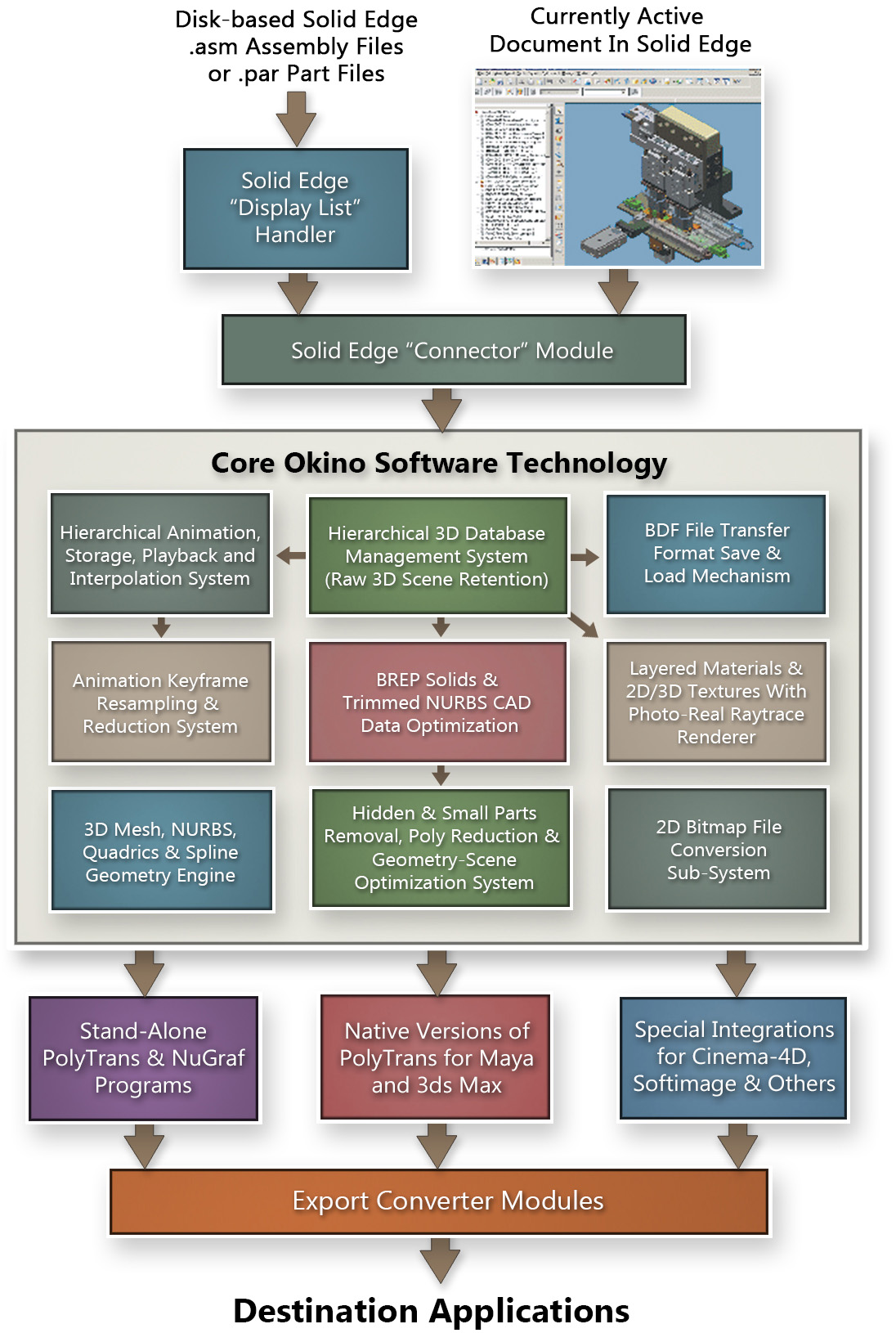
Okino's Solid Edge (SolidEdge, Solid-Edge) import converter module allows geometry, hierarchy and materials (assembly data) to be imported from a running copy of the Solid Edge 3D solid modeling application, or from native Solid Edge files on disk where no local copy of Solid Edge is available. No intermediate files are used in the translation but only native Solid Edge files. If you are importing from a live copy of Solid Edge then you will have the added benefit of being able to control the tessellation density.
The Solid Edge importer reads in native Solid Edge assembly (.asm), part (.par), sheet metal (.psm) and weldment (.pwd) files. Solid Edge v20 or older weldment files need to be re-saved from Solid Edge v100 (synchronous versions) if you wish to import via the "Display List" import method.
The complete overview of this Solid Edge importer, its documentation and feature list can be viewed by downloading the corresponding Windows CHM help file online here. Due to Windows security you may need to do this to view the .chm file: (1) download the .chm help file to your machine, (2) right click on the file in Windows Explorer and choose "Properties", (3) click the "Unblock" button.
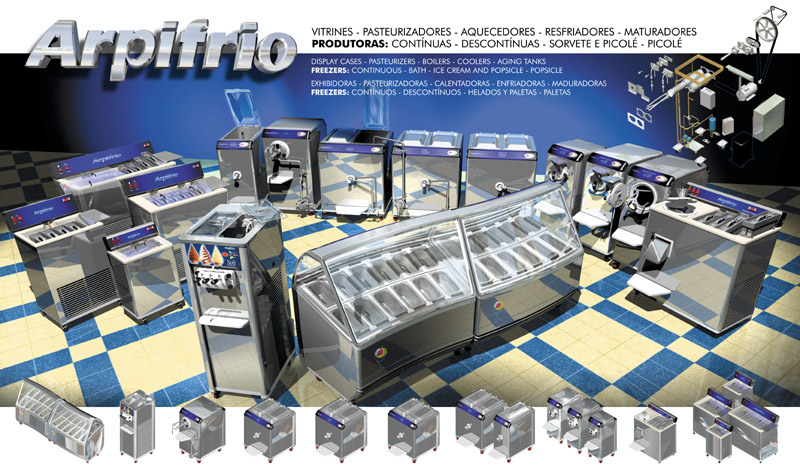
Family of Industrial Ice Cream Machines by FINAMAC. Imported from Solid Edge.
See image collection here.
Solid Edge users primarily purchase NuGraf if they wish to make high resolution renderings of their datasets (as exemplified in the Okino customer image gallery). Whereas Solid Edge users will purchase PolyTrans (the little brother to NuGraf) to convert their Solid Edge parts and assemblies to all major animation programs and file formats, in particular 3ds Max, Maya, Cinema-4D, LightWave and many others. NuGraf and PolyTrans are well established in these particular areas of speciality for Solid Edge users.
If your client is not willing to provide you with native Solid Edge files then our extensive testing of the Solid Edge program has shown that STEP is the preferred format to request client data from Solid Edge. You will only need to enable the "AP214" checkbox on the Solid Edge STEP exporter. Exporting STEP out of Solid Edge, and into Okino software, has been verified as providing high quality geometry, assembly information (hierarchy) and parts colors. Subjectively, you may have to enable or change these options on Okino's STEP importer: (1) "Flip Y Up" in case the geometry comes in on its side, (2) "Topology = Faces" in case the material colors are assigned at the 'Face' (NURBS) level and not the 'Bodies' level, and (3) you may have to scale your model larger or smaller to fit the 'ideal' 1x1x1 to 10000x10000x10000 world-space cube that provides the highest quality display quality in Okino and other downstream 3D programs (ie. don't import your entire model to be only 0.001 units across!!).
| Fundamental Uses of the Solid Edge Conversion System |
Fundamental uses of our PolyTrans and NuGraf products to Solid Edge users since the introduction of Solid Edge have included:
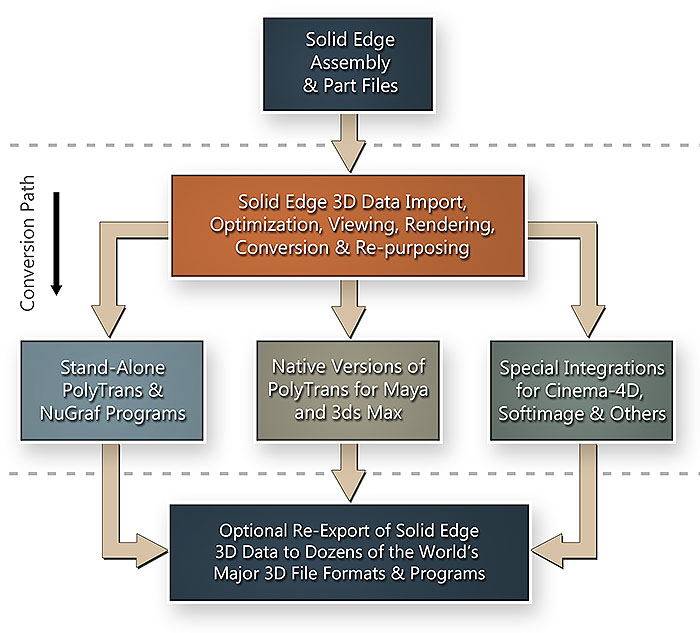
- Moving complex Solid Edge assemblies into any and all major 3D animation packages to allow access to the plethora of excellent animation features from programs such as 3ds Max, Maya, Cinema 4D, LightWave and others.
- Direct import of Solid Edge assemblies from within the user interfaces of 3ds max and Maya via the special native PolyTrans-for-Maya and PolyTrans-for-3dsMax plug-in systems.
- Once the Solid Edge data has been imported into PolyTrans or NuGraf it can be optimized, reduced in complexity, photo-realistically rendered (as well as have lights, cameras, materials, textures and uv-texture coordinates assigned) then re-exported to all major 3D file formats.
- Import into Okino's own NuGraf package (elder and more complex version of PolyTrans) for faster and more accurate rendering + scene layout. Some of our favorite customer CAD renderings created with NuGraf can be found here.
| Features of the Solid Edge Conversion System |
- Import from a live running copy of Solid Edge, or from native Solid Edge .asm and .prt files on disk (no locally installed copy of Solid Edge required for this latter feature).
- Imports and retains: assembly hierarchy information and assembly names, as well as BREP structure of the source model (bodies and faces). Can query accurate vertex normals, uv texture coordinates and UV tangent vectors from Solid Edge directly.
- The quality of the model (the number of polygons) can be controlled when importing from Solid Edge (but not when importing from files directly on disk).
- If one part is instantiated N times in the Solid Edge assembly tree then this importer will recognize such a situation and use Okino's core database master/instance capability to import the part just once and instantiate it N times.
- The native PolyTrans plug-in systems for 3ds Max (PolyTrans-for-3dsMax) and Maya (PolyTrans-for-Maya) have been refined over 2 decades specifically for importing large CAD assembly models from Solid Edge.
- A good number of important options that can be (optionally) set prior to import, to control most situations that could be encountered with Solid Edge data import. Many options have come about from end-user requirements or situations.
- Complete control over material parameter modification on an automatic basis. Many CAD systems like Solid Edge have basic material parameters (like color, ambient + diffuse shading coefficients, opacity, etc) but when they are transferred over to a rendering and animation system they often look "too bright" or "highly ambient". This can be expected and is quite normal. The material tweak parameters easily allow such saturated shading values to be automatically compensated.
- If you are importing the Solid Edge data into Okino's PolyTrans or NuGraf software then it is possible to "refresh" or "update" the scene data directly from Solid Edge without having to re-import the whole scene again.