

 |
 |
|
|
| |
| You are here: Home » Import CAD Formats » AutoCAD-Revit-Navisworks (DWF-3D) |
|



Support: 905-672-9328 Copyright © 2024 Okino Toronto, Ontario, Canada.  |
 |
|
 Importing 3DS Files and History of the 3D Studio 3DS File Format Importing 3DS Files and History of the 3D Studio 3DS File Format |
Please refer to Okino's PolyTrans-for-3dsMax as the defacto 3D conversion system for 3ds Max users, both for bidirectional DCC/Animation conversion between all main animation packages and downstream 3D file formats, and all major 3D CAD formats.
Please do not use the .3ds file format to convert to/from 3ds Max.
This geometry converter imports complete 3D Studio files and write them out in whole or in part to other popular 3d file formats. The converter has been under constant development since 1993 and hence includes many nuances that allow it to mimick how 3D Studio itself imports .3ds files (such as properly clamping (u,v) texture coordinates that have invalid ranges).
The .3ds file format was the native file format of the old Autodesk "3D Studio R1-R4" software, which was popular up to about 1996 before its successor (3ds Max) replaced it. Having been around since the very late 1980's, it has grown to become an industry standard for transferring models between 3D programs, or for storing models for 3D resource catalogs (similar in status to Wavefront OBJ as a model archiving file format).
Okino was the first to fully reverse engineer the .3ds file format by 1993 and it became one of the most fundamentally important converters in our software, along with LightWave support by 1994. Okino's .3ds importer reads in and converts every aspect of a 3D Studio file including all geometry (+ proper smoothing group recognition and processing), all camera and object animation data (plus the ability to animate 'instances' of 3D Studio objects), all material attributes (including the proper translation of edge fall-off transparency), lights, cameras, view data, background color schemes and all other auxiliary data from a .3ds binary file. In addition, it handles all (u,v) texture coordinates and uniquely imports all of the 3D Studio texture mapping methods (2 texture color maps, bump maps, opacity maps, shininess maps, automatic planar & cubical environment maps, spherical environment maps and luminosity maps).
The converter is machine independent and does not depend upon the any third party file format library. Versions 1 through 4 of the .3ds file format are accommodated. It can also read in data from a 3D Studio .prj (project) file and a .mli (material) file.
Also refer to the corresponding .3ds file exporter.
| Dialog Box Options |
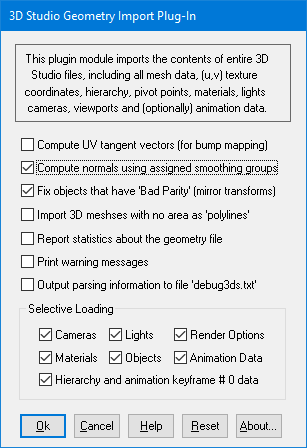
Compute UV Tangent Vectors (For Bump Mapping)
If this check is check-marked then UV tangent vectors will be computed for any object which has a material with bump map texture mapping enabled. UV tangent vectors are required for bump mapping to appear in rendered images created by Okino's NuGraf or PolyTrans scanline and ray tracer renderers. This option is disabled by default since the computation routine can slow down a typical .3ds import. If you want to import and render bump mapped surfaces in Okino software from a .3ds file then enable this option.Compute Normals Using Assigned Smoothing Groups
If this checkbox is check-marked (the default) then vertex normals will automatically be computed based on the smoothing information associated with each object in the 3D Studio file. This smoothing operation will allow the imported objects to appear smooth when rendered. If this checkbox is un-checked then no smoothing will be performed resulting in objects which appear to be flat shaded when rendered.Fix Objects that have 'Bad Parity' (X axis Mirror Transforms)
If this checkbox is check-marked then special code will be enabled which will be used to detect and correct for the infamous 'Bad Parity' problem within 3D Studio files. 'Bad Parity' is a buzzword to mean that an X axis mirror transform has been applied to the object in 3D Studio r4. If this mirror transform is not detected then imported objects may not end up in their correct locations. This option is enabled by default but you can disable it if animated objects have objects that appear to be out of place.Import 3D Meshes Which Have No Area as "3D Polylines"
Many years after finishing our .3ds importer we encountered an odd .3ds file exported from 3ds Max which contained "3d meshes" but no polygons in them. The meshes had vertex coordinates, but nothing that defined by polygons. They were named as "Lines01", "Rectangle", etc. This is an illegal use of the .3ds file format to transfer 3D line data. Nonetheless, by enabling this option such "zero polygon" meshes will be imported as 3D polylines instead. If disabled, these zero polygon meshes will be ignored and imported as NULL objects instead.Report Statistics About the Geometry File
If this checkbox is check-marked then parsing statistics will be displayed in the message window after the 3D Studio file has been imported.Print Warning Messages
If this checkbox is check-marked then warning messages from the 3D Studio file parser will be printed out to the message window.Output Parsing Information to File 'debug3ds.txt'
If this checkbox is check-marked then the contents of the 3D Studio binary file will be verbosely described and output to the file 'debug3ds.txt'.Selective Loading
The following checkboxes allow all or only some parts of the 3D Studio file to be loaded:Cameras
If checkmarked, then camera definitions will be loaded in from the 3D Studio file.Lights
If checkmarked, then lights will be loaded in from the 3D Studio file.Render Options
If checkmarked, then the background render options (colors, bitmaps, etc.), the depth-cueing parameters and the fog parameters will be loaded.Materials
If checkmarked, then the material definitions will be loaded in from the 3D Studio file.Objects
If checkmarked, then all mesh data will be loaded in from the 3D Studio file.Animation Data
If this checkbox is enabled then all the animation keyframe data from the 3D Studio file will be imported into the program. This animation data can then be exported to the export file formats which currently support output animation data. This capability is only available when running this converter with Okino's PolyTrans or NuGraf software. If this option is grayed-out then animation import has not been licensed for your version of these software packages.Hierarchy and Animation Keyframe #0 Data
If checkmarked, then all the hierarchy and pivot point information will be loaded in from the 3D Studio file. In addition, animation data from the first keyframe will be loaded and applied to the objects and cameras so that they are positioned properly in space. If this option is un-checkmarked then no hierarchy information will be loaded (all objects will be attached to a single null node).