|
 |
|
|
| |
| You are here: Home » Import CAD Formats » CATIA v5 |
|



Support: 905-672-9328 Copyright © 2024 Okino Toronto, Ontario, Canada.  |
 |
|
 Importing CATIA v4 3D Files Importing CATIA v4 3D Files |
This geometry import converter imports and processes BREP solids-based CAD geometry files stored in the CATIA v4 native file formats.
The CATIA stand-alone program (made by Dassault Systèmes and distributed by IBM) is an integrated suite of Computer Aided Design (CAD), Computer Aided Engineering (CAE), and Computer Aided Manufacturing (CAM) applications for digital product definition and simulation. It allows manufacturers to simulate all the industrial design processes, from the pre-project phase, through detailed design, analysis, simulation, assembly and maintenance. CATIA is primarily used by the automotive and aerospace industries for automobile and aircraft product and tooling design (it is well known for being used by Boeing to design their massive airplanes, or NASA to help design the Space Shuttle). There are roughly 20,000 companies worldwide using CATIA with roughly 30,000 seats sold per year.
Notes:
- If the file extension of your CATIA files end in ".CATPart", ".CATProduct" then these are CATIA v5 files and not CATIA v4. In such a case you will need to use the Okino CATIA v5 importer.
- This is an optional add-on CAD module compatible with any Okino software.
- ** IMPORTANT ** Spatial Corp. licenses its CATIA v4 licenses on a per-year basis (this is not an Okino policy), with extensions via the yearly maintenance fee. Each year the license has to be renewed via the yearly 'maintenance fee'. Okino personally contacts its users of the Spatial CATIA v4 converters at month 11 and just before month 12 to remind them of the pending maintenance renewal. If the maintenance is not renewed then the CATIA v4 license will expire. Spatial Corp. requires that the maintenance fee be paid yearly, starting with the initial purchase. If you let the maintenance payment lapse (and let the license expire as a result), then decide to start paying them again at some undetermined time in the future to re-start the license, a "re-instatement fee" will then be due to Spatial Corp.
- This converter uses licensed components from Spatial Corp. If you encounter any problems loading a 3D model then please forward a problem report to support@okino.com and we will forward it to Spatial on your behalf.
| Some Major Benefits of the CATIA v4 Importer |
- Based on the CATIA interoperability components of Spatial
Corp, a company
owned by Dassault Système (the developers and owners of the CATIA modeling
software) and hence uses the highest quality conversion technology.
- Okino has been a trained Spatial developer since 1997, resulting
in a top notch, refined and professional implementation
of the Okino-CATIA importer.
- Supports CATIA v4 .model and .dlv (mainframe), .exp (export) and .session
files. The .model files are generally used for one part files
while .dlv and .exp files are used for multipart creation.
- Many options to control the import of the data. Import by body, face,
bodies + faces or bodies + shells + faces. This allows rendering
materials to be applied at the finest granularity (faces) or the coarsest (bodies).
- Extensive tessellation controls.
-
Model healing and erroneous surface repairs.
- Selective layer import.
-
Importing via the CATIA "solids-based" file formats ensure
that
adjacent NURBS patches are "stitched" together via topology information
(BREP
data) and thus creates "crack free" tessellation when the NURBS
or parametric solids are converted to a polygonal mesh.
- Imports CATIA files directly into 3ds Max
and Maya via the native PolyTrans-for-MAX and PolyTrans-for-Maya plug-in systems.
These are by far the most refined, developed and best methods
to directly import
solids-based CAD files into 3ds Max and Maya.
Also excellent conversion into Softimage|XSI, Newtek's Lightwave, MAXON's
Cinema-4D and many other downstream 3D software packages and
file formats.
- The CAD importer includes a vital built-in Okino hierarchy/part
optimization
tool to reduce the complexity of the imported CAD files before
re-exporting to other 3D animation packages and downstream
file formats. This
processing
is particularly important when importing large CAD assemblies
into Lightwave, 3ds Max and Maya.
| File Extensions Supported |
This importer recognizes the following CATIA v4 file extensions, from versions 4.1.9 up to 4.2.4 (or newer depending on the release of this importer):
- .model or .dlv - CATIA mainframe files
- .exp - CATIA export files
- .session - CATIA session files
The .model files are generally used for one part files while .dlv and .exp files are used for multipart creation.
Some CATIA v4 files may not have any files extensions, so you might want to try and rename them to .model or .exp.
If the file extension ends in ".CATPart", ".CATProduct" or ".CATDrawing" then these are CATIA v5 files and not CATIA v4. In such a case you will need to use the Okino CATIA v5 importer.
| CATIA Session Files |
A CATIA Session file is a collection of CATIA V4 models. The session file contains reference to the .model files in the session. The session file can be saved using 4 options:
1. Save references only
2. Save copies of modified data
3. Save copies of all data
4. Save reference and update original dataSaving a session file inside CATIA using options 1 or 4 produces 1 session file only that has references to the model files of the session. Option 2 and 3 creates some additional session files that are actually modified model files.
| Documentation for Each Importer Option Panels |
Click on any one of the small screen snapshots to jump to the corresponding section of this WEB page:
| CATIA v4 | Transfer Control | Secondary | Tessellation |
|---|---|---|---|
![[1]](imp_catia4_sml3.gif) |
![[2]](imp_catia4_sml1.gif) |
![[3]](imp_catia4_sml2.gif) |
![[4]](imp_catia4_sml4.gif) |
| CATIA v4 Import Options |
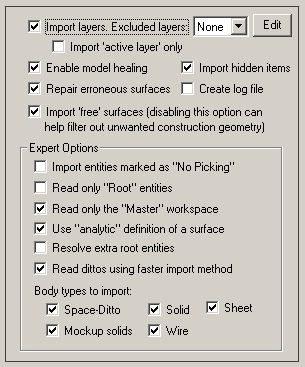
Import Layers
If this option is enabled then the imported geometry parts (the "bodies") will be parented to the layer grouping names specified in the input file. If the input file does not contain any layering or assembly information then no grouping will be performed. CATIA v4 files have layers numbered from 1 to 255.
If you wish to exclude one or more layers from being imported then click on the "Edit" button beside the drop-down combo box. This will pop up the following dialog box:
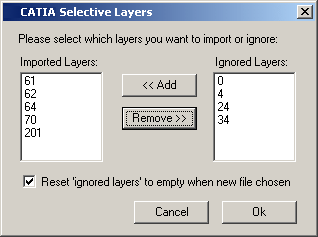
The numbers on the left side are the layers which were found in the source CATIA file (after the file is scanned) and which will be imported. The numbers on the right side are the layers which you wish to exclude (ignore) during the import process. To move layers between each listbox, do an extended listbox selection then press the "Add" or "Remove" buttons.
If the "Reset Ignored Layers To Empty When New File Chosen" checkbox is enabled, then the "Ignored Layers" list will be implicitly reset to empty status whenever you choose a new CATIA file to import. This is the default, since it makes sense that the 'layers to ignore' should be reset to empty whenever you import a new file. If you would like the 'Ignored Layers' listbox to remain unchanged as you select new and different CATIA files then keep this checkbox unchecked.
If the "Import Active Layer Only" checkbox is enabled then the exclusion list is ignored, and only the entities which reside on the "currently active CATIA v4 layer" are imported.
Enable model healing
If this checkbox is enabled then a healing algorithm will be enabled on the imported data to try and keep all entities as valid "solids".
The repair process can be categorized into two categories:
1) Tolerizing of CATIA entities (edges and vertices)
Edges and vertices are welded together to a tolerance of 1e-6 units.
2) Healing of entities
Healing of entities can be categorized into three types:
- Modification of topology of body - This process involves removal of duplicate and overlapping vertices, removal of small edges, removal of sliver faces from body, and splitting of edges having large G1 discontinuities in their curves.
- Modification of geometry of body - This process involves reconstruction of self-intersecting and irregular curve geometry of edge, co-edges and, surface geometry of faces. In addition, trimming and sub-setting of underlying surfaces of faces to a uv-box of face is also performed.
- Fixing of other invalid data in the body such as loop errors.
Import hidden items
If this checkbox is enabled then items which are marked as being "hidden" are not imported.
Repair erroneous surfaces
If this checkbox is enabled then the importer will check all the spline surfaces in the model and will attempt to correct them by using spline re-surfacing Algorithms.
Import 'free' surfaces
If this checkbox is enabled then "free surfaces" will be imported. Some models may contain free surfaces that do not need to be translated. Disabling this checkbox can help filter out unwanted construction geometry.
Import entities marked as "No Picking"
If this checkbox is enabled then CATIA geometry items marked as being "No Pick" will be imported, else they will be ignored.
Read only "Root" entities
If this checkbox is enabled then only CATIA "root" entities are imported, which is the default. If this checkbox is disabled then all entities will be imported.
Read only the "Master" workspace
If this checkbox is enabled then only the "master" workspace will be imported (default). If disabled, all workspaces will be imported.
Use "analytic" definition of a surface
CATIA files store polynomial definitions of surfaces as well as analytic definitions. This option can be used to set which definition to be used for translation.
If this checkbox is enabled (the default) then the analytic definition will be used to import the surface. If this checkbox is disabled then the polynomial definition will be used.
Resolve extra root entities
If this checkbox is enabled then the importer will make checks to resolve other extra root entities (the child surface or a parent curve will be imported and set as the 'root').
The extra root entities are of type "curve parent" and "child surface" so if a curve is filtered out then the corresponding surface is also filtered out too.
Read dittos using faster import method
This enables an internal importer optimization which allows faster import of dittos when one copy is instanced or referenced many times in the CATIA v4 file.
Body types to import:
Space-Ditto
If this checkbox is enabled then CATIA "Space-Ditto" bodies will be imported.
Mockup Solids
If this checkbox is enabled then CATIA "Mock up solid" bodies will be imported.
Solid
If this checkbox is enabled then solid bodies will be imported.
Wire
If this checkbox is enabled then wire bodies will be imported.
Sheet
If this checkbox is enabled then sheet bodies will be imported.
| Transfer Control Importer Options |
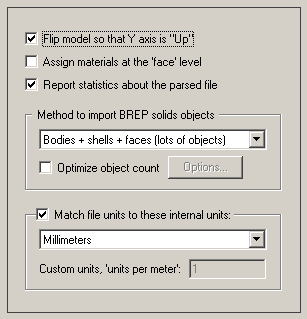
Flip Model so that Y Axis is ‘Up’
If this option is enabled then the model will be rotated so that its “Up” axis is aligned with the positive Y axis instead of the positive Z axis.
Assign Materials at the 'Face' Level
If this option is enabled then materials will be allowed to be assigned at the "face" BREP object level. BREP objects are defined as bodies, shells and faces. If you import a model and find that some materials are missing then most probably they have been assigned at the lower level "face" level, in which case you will want to enable this option. This option is enabled by default.
Report Statistics About the Parsed File
If this checkbox is enabled then the import converter will print out the number of objects, polygons, normals, texture coordinates, tangent vectors and surfaces that were parsed from the input file.
Method to Import BREP Solids Objects
Solids-based CAD data is composed of “bodies” which contain one or more “shells”, and each shell contains one or more "faces". A body can be considered as an 3D object, and the faces can be considered at the sub-parts of the object. This is otherwise commonly known as a BREP, or "Boundary Representation" of a solids object.
This combo box determines how the solids-based BREP Body/Shell/Face entity will be imported and converted to the non-BREP polygonal form required by this destination program:
Single Body Parts (single BREP tesellation)
This option will create the least number of geometry items after import. If you feel that the model is still imported as "too many parts" then enable the "Optimize Object Count" checkbox.
This choice will cause all the sub-parts (faces) to be stored as a single object (ie: you won’t be able to move or modify the sub-objects of the body); this is useful if you don’t want dozens, hundreds or thousands of sub-parts cluttering your scene.
The "single BREP tessellation" variation will cause the faceter/tessellator to be applied to the top-most "Body" entity and not to each individual face (like as done in the next option below). This may result in better, crack-free tessellations.
Single Body Parts (via combined faces)
This is identical to the previous option above, except that the tessellation is applied to each individual face of the model and not to the body. After all the faces of the body are tessellated then they are combined back together into a single polygonal object.
Bodies + Faces (Lots of Objects)
This option will import the BREP "body" as many sub-parts (many BREP "faces"). It will tend to create a large number of child objects in the final scene. Choosing this option will provide the ultimate control over assigning materials to each face part of the BREP model, as well as allowing you to manipulate each face part.
Bodies + Shells + Faces (Lots of Objects)
This is the same as the "Bodies + Face" option except that another dummy level of hierarchy will be added between the "Body" definition and the list of "Face" parts in the hierarchy, with the name "Shell" on the dummy nodes. Basically this option will separate the Face parts based on the shell they are associated with in the Body part. Some people find this convenient if they model their parts based on "shells".
Optimize Object Count
By enabling this "Optimize Object Count" checkbox a series of algorithms will be invoked to combine all sub-parts contained within grouping nodes (under the yellow folder shown above) into respective single objects. In other words, the hundreds of sub-parts contained within grouping nodes will be reduced to single parts within each grouping node. In addition, once all the parts have been combined together, redundant grouping and hierarchy nodes will be deleted or merged.
In general this option only makes sense to enable when the "Method to Import BREP Solids Objects" combo box is set to "Bodies, shells and Faces" since this import method will create a huge number of "Face" objects.
For this importer it is not recommended that you need to enable this option. Instead, just set the "Method to Import BREP Solids Objects" combo box to "Single Body Parts" or "Single Body Parts + Shell Hierarchy". These options will implicitly import the least number of object parts.
The "Help" button which appears on the dialog box when this button is pressed describes the object and hierarchy compression algorithm further.
Match File Units to These Internal Units
"Units conversion" is often an important aspect of importing CAD files. People who create 3D models in a modeling package will do so using a specific units system, such as meters or feet. However, when these models are imported into another 3D package that uses a different default units system (such as Lightwave which uses centimeters), a "units conversion" operation needs to occur (the imported model geometry needs to be rescaled).
This option determines what will be done when the units defined in the source file do not match current internal program system units. If the units do not match, the importer will rescale the imported geometry based on the ratio between the source file units and the internal system units.
The drop-down combo box specifies the current units system in effect within the internal NuGraf/PolyTrans 3d database. It defaults to meters. What you need to do is select an appropriate entry from the drop-down combo box which matches the system units used by your destination program: for example, set it to Centimeters for Lightwave, Inches for 3DS MAX, Centimeters for Maya, etc (this should be automatic if importing into 3ds max or Maya).
None No units; never do any geometry scaling Custom Custom units are in effect. See below Microinches 1e-6 inches Mils 1e-3 inches Inches 0.0254 meters Feet 12 inches Miles 63360 inches Microns 1e-6 meters Millimeters 1e-3 meters Centimeters 1e-2 meters Meters Kilometers 1e+3 meters Custom Units in "Units Per Meter"
If the drop-down combo box is set to "Custom", then this edit text control defines the "units per meter" scale factor for the custom unit system.
| Secondary Options |
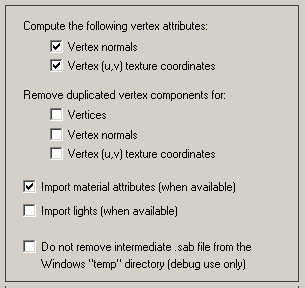
Compute the Following Vertex Attributes
Vertex Normals. If this checkbox is enabled then the import converter will compute proper vertex normals for each triangle vertex. Vertex normals are necessary to make an object appear to be smooth when rendered.
Vertex (u,v) Texture Coordinates. If this checkbox is enabled then the import converter will compute proper texture (u,v) coordinates for each triangle vertex. Texture coordinates are necessary if a bitmap texture image is to be applied to the object at some time in the future.
Remove Duplicated Vertex Components For...
Vertices. If this checkbox is enabled then the import converter will remove any duplicated or redundant vertex coordinates. This will not modify the object but it may reduce the amount of memory required to store the imported model.
Vertex Normals. Likewise, if this checkbox is enabled then the import converter will remove any duplicated or redundant vertex normals.
Vertex (u,v) Texture Coordinates. Likewise, if this checkbox is enabled then the import converter will remove any duplicated or redundant vertex texture coordinates
Import Material Attributes (when available)
If this checkbox is enabled then additional rendering material attributes will be imported, if and only if they exist within the source data and are made available to this importer. Some of these attributes may include:
· RGB surface color
· Ambient, diffuse, specular and phong power shading coefficients
· TransparencyImport Lights (when available)
If this checkbox is enabled then lights will be imported, if and only if they exist within the source data and are made available to this importer. Point, spot, directional and ambient lights are supported.
Do not remove intermediate .sab file from the Windows "temp" directory (debug use only)
During the conversion of a CATIA v4 or CATIA v5 file an intermediate ACIS file is created in the Windows TEMP directory. If this option is enabled (which is not the default) then this intermediate temporary file will not be deleted from the Windows TEMP directory.
| Tessellation (surface refinement) Options |
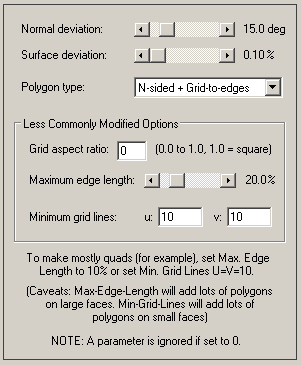
An important aspect of this import converter is its surface tessellator. Almost all data imported from the source file is either “solid” entities or NURBS surfaces so this tessellator converts the implicit surfaces to n-sided polygons, quads or triangles during the import process.
The surface tessellator used in this import converter is the one provided by Spatial Technology. It converts the implicit surfaces to n-sided polygons, quads or triangles by applying the following refinement criteria, from highest to lowest:
1. Minimum number of U and V grid lines
2. Maximum edge length
3. Normal deviation
4. Surface deviation
5. Grid aspect ratioThe parameters on the right side of the dialog box control the surface refinement process.
Recommended Usage Method
- To make a bumpy or curved surface look smoother, move the 'Surface Deviation' slider more to the left.
- To make rounded edges or a curved surface look smoother, move the 'Normal Deviation' slider more to the left.
- To make 'quad-like' polygons and not a pure triangular mesh, with many of the resulting polygons have a squarish aspect ratio:
- Change the 'Polygon Type' combo box to Triangles on fringes only.
- Set the 'Minimum Grid Lines in U and V Directions' U and V values both to 10, or, change the 'Maximum Edge Length' to 0.1 (10%).
NOTE: If you wish to disable one or more of these refinement criteria then set the refinement parameter’s value to 0 (where possible).
Normal Deviation (Degrees)
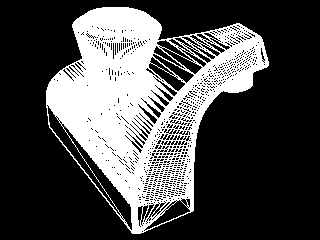
This slider specifies the maximum deviation (in degrees) between the normals on two adjacent faces. Smaller values will make surfaces and curves smoother, but at the expense of creating more polygons. The default is 15 degrees and the range is 0 to 90 degrees.
15 degrees
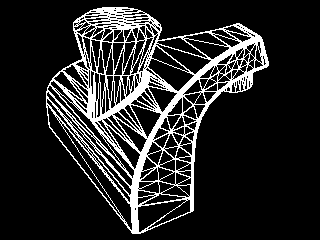
1 degree
Surface Deviation (Percentage)
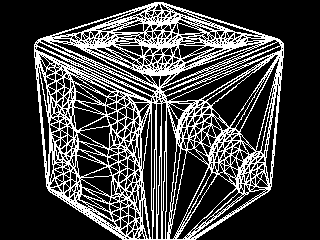
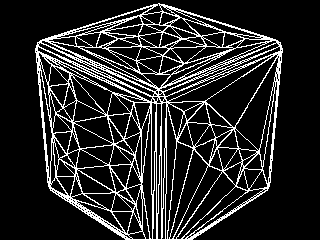
This slider specifies the maximum allowable distance between a polygon and the true surface, expressed as a percentage of the object’s bounding box size. Smaller values will make the model appear smoother, but at the expense of creating more polygons. The default is 0.2%.
0.1% deviation
1% deviation
Polygon Type
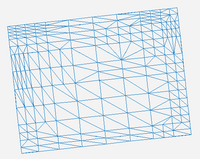
This combo box determines whether the tessellator will create triangles (3-sided polygons), N-sided (4-sided or more polygons) or a combination thereof.
Only triangles
This option will cause the tessellator to output the polygonal mesh purely as triangles.
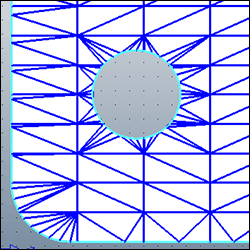
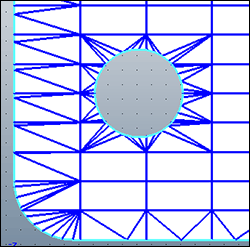
N-Sided, Triangles on fringes only
This option will cause the tessellator to primarily output 4-sided quads or 5-sided polygons, except for the edge areas where some or all of the polygons may be triangles (to allow for smoother meshes).
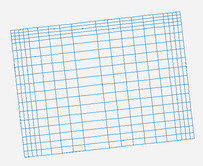
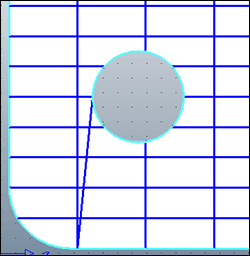
N-Sided + Grid-to-edges
This option will cause the tessellator to output the polygonal mesh purely as a rectilinear grid of 4-sided quads or 5-sided polygons.
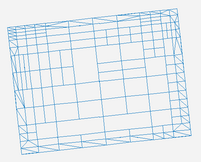
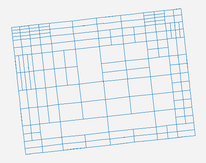
N-Sided + Quad-tree
This option will cause the tessellator to output the polygonal mesh purely as 4-sided quads or 5-sided polygons. However, an adaptive meshing algorithm (quad-tree or bin-tree) will be used to produce a more intelligent tessellation.
Less Commonly Modified Options
Minimum Grid Lines in U and V Directions
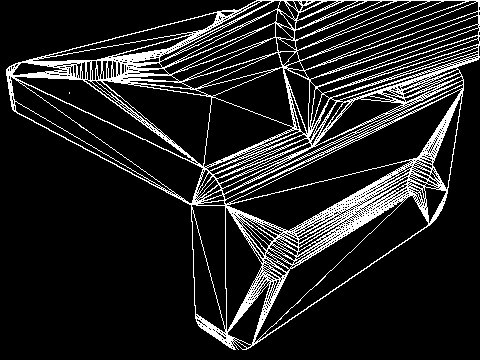
Spatial's tessellator is based on the concept of a rectilinear grid overlayed on the NURBS geometry which helps to determine how finely subdivided the geometry will become. Thus, this provides another mechanism to further subdivide the final polygonal facets.
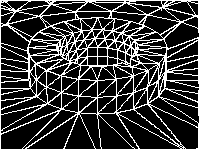
In the following image, the number of grid lines is unconstrained (both of the parameter values set to 0).
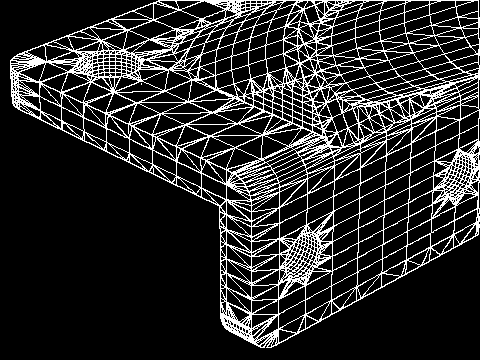
Whereas in the following image, the 'Minimum Grid Lines' in the U and V directions have been changed to 10 (and the 'Polygon Type' was set to 'Triangles on Fringes Only'):
Maximum Edge Length
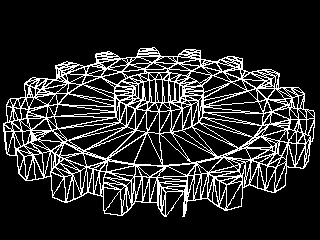
This slider specifies the maximum allowable length of any "edge", expressed as a percentage of the model's bounding box extents.
This image shows the result when this option is disabled. Notice the long triangles in the center flat region:
Edge length = 0 (disabled)
This second image shows this option set to 20%, which forces the model to be triangulated further so that no edge length is more than 0.2 times the size of the model's bounding box extents:
Edge length = 20%
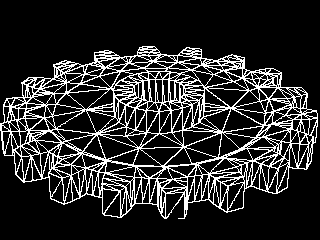
The following is another example. In the first image the 'Maximum Edge Length' has been set to 0 (disabled):
Whereas in the following image, the 'Maximum Edge Length' has been changed to 0.10% (and the 'Polygon Type' was set to 'Triangles on Fringes Only'):
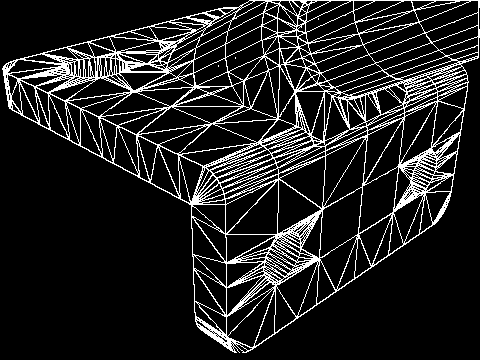
Smaller values (greater than 0.0) will cause more triangles to be created. A value of 0 disables this refinement parameter.
If modifying this option does nothing, then set the slider to increasingly smaller values (0.4% is the smallest input value possible).
Grid Aspect Ratio
This parameter specifies the approximate aspect ratio of each cell in the grid. If the value is close to 1 then the cell is close to a square. This does not guarantee the aspect ratio of the facet, which may consist of only a part of a cell.
Aspect ratio = 0.0
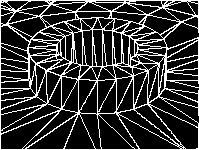
Aspect ratio = 1.0